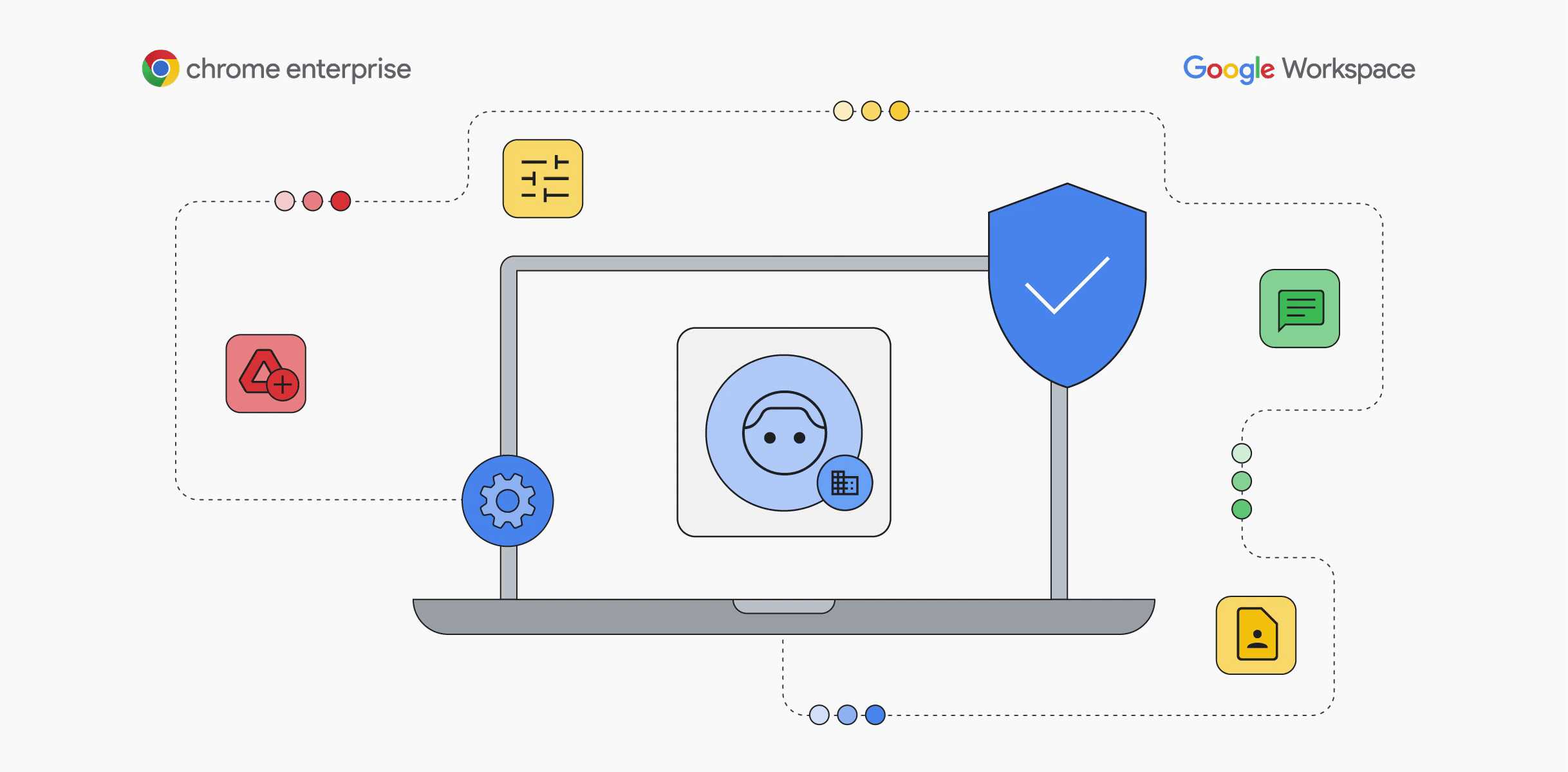
To boost your productivity with Google Workspace, focus on mastering its key tools like Gmail, Drive, and Calendar to streamline your workflow. Automate repetitive tasks, collaborate seamlessly in real-time, and organize your files and schedules for maximum efficiency. With a bit of practice, Google Workspace can become your go-to suite for getting things done faster and smarter.
Google Workspace offers a comprehensive set of cloud-based productivity tools designed to simplify your work life. By integrating apps like Gmail for communication, Google Drive for storage, and Calendar for scheduling, you can work more efficiently, collaborate with team members effortlessly, and keep everything organized in one place. Whether you’re managing a team or organizing your personal projects, mastering these tools will help you accomplish more in less time.
Getting started with Google Workspace is easier than you might think. From setting up your account to customizing workflows, this suite of tools is built for users of all levels. You can draft emails quickly, share documents seamlessly, schedule meetings without hassle, and even automate routine tasks—all within a unified platform. By leveraging these features, you’ll transform how you work and enhance your overall productivity.

How to use Google Workspace for productivity
Google Workspace offers a suite of tools designed to help you work smarter and faster. Using these apps effectively can save time and make teamwork easier. Let’s explore how you can get the most out of Google Workspace to boost your daily productivity.
Getting Started with Google Workspace
First, set up your Google Workspace account. Sign in with your email and create a profile. Once logged in, familiarize yourself with the main dashboard. This is where you can access all your apps quickly.
Customize your workspace by organizing your apps into bookmarks or folders. This makes it easier to find the tools you use most often. Remember, a clean workspace leads to better focus and productivity.
Using Gmail for Efficient Email Management
Gmail is central to communication in Google Workspace. Use labels and filters to automatically sort incoming emails. This way, important messages stay visible while less urgent ones are tucked away.
You can also schedule emails to be sent later. This helps you plan your communication without rushing. Use the snooze feature to postpone less urgent messages until a better time.
Collaborating with Google Drive
Google Drive stores all your files securely online. Create folders to organize documents, spreadsheets, and presentations. Use shared folders to collaborate seamlessly with others.
When sharing files, set permissions carefully. Decide if others can view, comment, or edit. This ensures your work remains protected while allowing teamwork to flow smoothly.
Creating and Editing with Google Docs, Sheets, and Slides
Google Docs is perfect for writing and editing documents with others in real time. Use comments and suggestions to improve your work collaboratively. The revision history feature helps you track changes easily.
Google Sheets allows you to work with data, create charts, and analyze information quickly. Use formulas to automate calculations and save time. Google Slides is great for creating presentations that you can edit with team members live.
Enhancing Productivity with Google Calendar
Google Calendar helps you plan your day efficiently. Schedule meetings, set reminders, and block out time for focused work. Use color-coding to differentiate between personal and work commitments.
Share your calendar with colleagues to coordinate schedules easily. Integrate it with Gmail to receive automatic updates about upcoming events and deadlines.
Utilizing Google Chat and Meet for Communication
Google Chat provides a space for instant messaging with team members. Use it for quick questions, updates, or discussions. Organize chats into rooms based on topics or projects for better clarity.
Google Meet allows you to hold virtual meetings easily. Schedule meetings directly from Calendar or start them instantly. Use screen sharing to present ideas clearly during discussions.
Implementing Productivity Tips with Google Workspace
Use keyboard shortcuts across apps to save time. For example, press ‘C’ in Gmail to compose a new email or ‘Ctrl + K’ to insert links quickly.
Create templates for common documents or emails. This speeds up repetitive tasks and maintains consistency across your work.
Automating Tasks and Workflows
Leverage Google Workspace tools like Google Apps Script to automate routine tasks. For instance, set up automatic email responses or generate reports from your data.
Integrate third-party apps with Google Workspace to expand functionality. Many apps can connect to Drive, Calendar, or Gmail for a tailored workflow.
Keeping Your Workspace Secure
Enable two-factor authentication to protect your account. Use strong, unique passwords for different apps. Regularly review sharing permissions to keep sensitive data safe.
Google Workspace also offers admin controls for organizations. These help manage user access and monitor activity for better security.
Exploring Advanced Features for Power Users
Use Google Keep for quick note-taking and task management. Integrate it with Gmail and Calendar for reminders. Explore add-ons and extensions to enhance app capabilities.
Set up custom workflows with Google Workspace Marketplace apps. These tools can help with project management, analytics, and more to optimize productivity.
Best Practices for Maximizing Google Workspace
Regularly back up important files and data. Use version history to revert changes when needed. Keep your apps updated to access new features and security patches.
Establish routines for checking emails, updating files, and planning your day. Consistency helps you stay organized and productive over time.
- Tips for Remote Collaboration with Google Workspace
- Integrating Google Workspace with Other Productivity Tools
- Managing Large Teams with Google Workspace Admin Console
By understanding and utilizing these features, you can make Google Workspace your go-to platform for work. It simplifies communication, collaboration, and organization, helping you be more productive every day.
[2024] Google Workspace Beginners Guide | Tips on Getting Started (from an Expert)!
Frequently Asked Questions
How can I organize my files effectively in Google Drive?
To organize your files efficiently in Google Drive, create folders tailored to specific projects or categories. Use clear and descriptive names for folders and files, and utilize color-coding to differentiate between them visually. Regularly review and delete unnecessary files to keep your Drive tidy. Taking advantage of the ‘Priority’ workspace allows quick access to important documents, making it easier to find and manage your files quickly.
What features in Google Workspace help improve team collaboration?
Google Workspace offers real-time editing in applications like Google Docs, Sheets, and Slides, enabling multiple team members to work on the same document simultaneously. Comments and suggested edits facilitate clear communication, while sharing settings allow you to control who can view or edit files. Additionally, integrated videoconferencing through Google Meet fosters seamless communication among team members, enhancing collaborative efforts.
How do I manage notifications to stay updated without getting overwhelmed?
Manage your notifications by customizing settings within each Google Workspace app. You can choose to receive alerts for important updates or comments while muting less critical notifications. In Gmail, use filters and labels to organize incoming messages so that you focus on high-priority emails. Turning off email notifications for specific activities and setting up mobile alerts for key updates helps you stay informed without feeling overwhelmed.
What are best practices for scheduling and managing meetings using Google Calendar?
Use Google Calendar to set up meetings with clear titles, agendas, and relevant participants. Utilize the event description to include all necessary information and attach related documents. Set automatic reminders to ensure attendees receive timely prompts. Take advantage of the scheduling feature to find mutually available times quickly, and integrate calendar events with Gmail to streamline the planning process. Regularly review and adjust your calendar to prevent overlaps and ensure effective time management.
Final Thoughts
How to use Google Workspace for productivity involves leveraging its tools effectively. Use Gmail for efficient communication and organize your inbox with labels and filters. Collaborate seamlessly on Google Docs, Sheets, and Slides for real-time teamwork. Utilize Google Calendar to schedule and keep track of deadlines. Automate workflows with Google Apps Script or integrations to save time. Implement these strategies to maximize your productivity with Google Workspace and work more efficiently every day.