
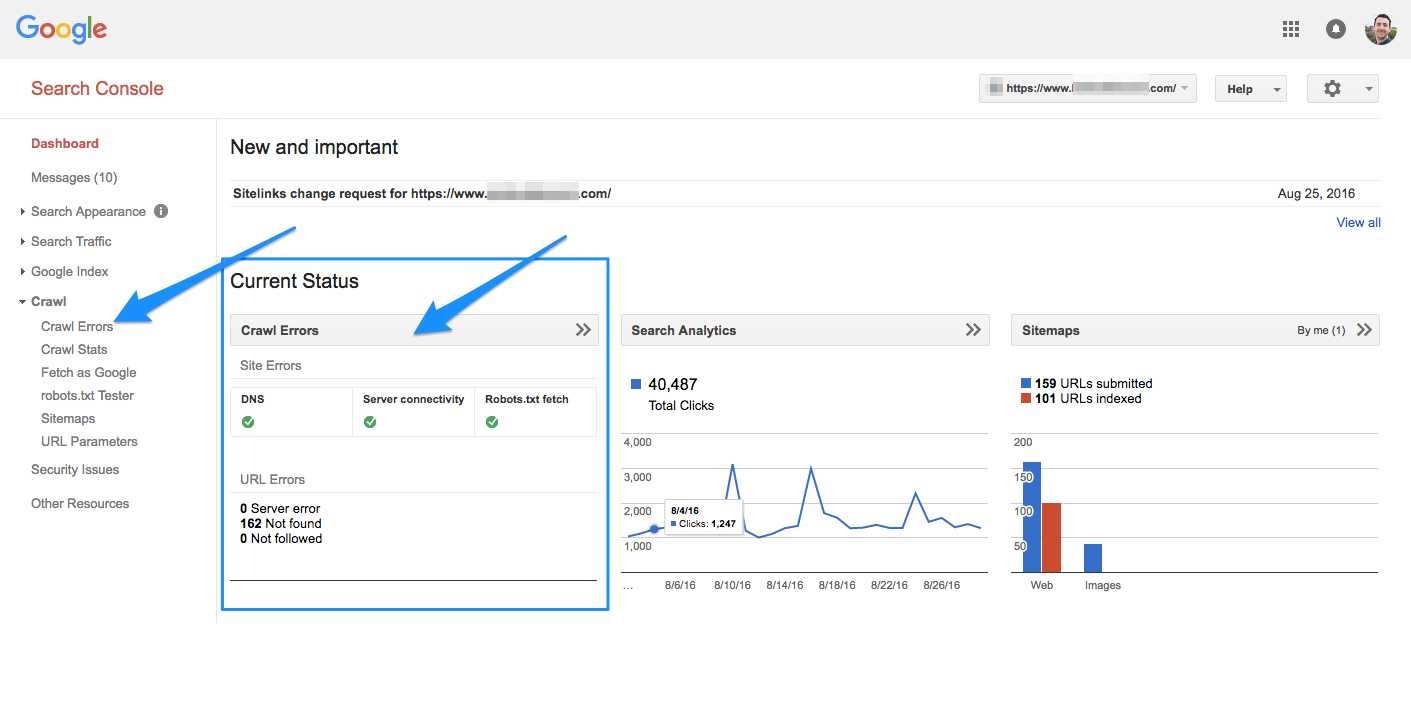
To fix crawl errors effectively, regularly monitor your Google Search Console and fix the issues as soon as they appear. Prioritize errors based on their impact and follow specific steps like submitting sitemaps, fixing broken links, and ensuring proper redirects. Taking quick action will improve your site’s visibility and user experience.
Crawl errors can seriously hinder your website’s performance in search results, but with Google Search Console, addressing them becomes straightforward. By analyzing the errors reported, fixing broken links, and submitting updated sitemaps, you can ensure Googlebot efficiently crawls and indexes your site. Regularly checking these errors allows you to maintain a healthy site that performs well in search rankings.
When it comes to optimizing your website’s visibility, understanding and fixing crawl errors is crucial. Search engines rely on crawling to discover and index your content; any issues can prevent your pages from appearing in search results. Thankfully, Google Search Console provides a clear picture of such problems, giving you the tools needed to resolve them quickly. Whether it’s fixing 404 errors, redirect issues, or server problems, addressing these errors ensures your site remains accessible and search-friendly. Regularly maintaining your site’s crawling health not only boosts your SEO efforts but also enhances user experience by delivering seamless access to your content.

How to address crawl errors using Google Search Console
Understanding Crawl Errors and Why They Matter
Crawl errors occur when Googlebot tries to access your website but encounters problems. These errors can prevent your pages from appearing in search results. Fixing them helps ensure your site is fully visible to users and improves overall SEO health.
Common Types of Crawl Errors
Google Search Console reports two main kinds of crawl errors:
- Site-wide errors: Affect multiple pages across your site.
- URL-specific errors: Impact individual web pages.
Understanding these types helps you prioritize fixes effectively.
How to Find Crawl Errors in Google Search Console
Start by signing into your Google Search Console account and selecting your website property. Navigate to the Coverage report under the Index section. Here, you’ll see a list of errors grouped by type.
Reviewing Error Details
Click on each error category such as 404 errors or server errors to view affected URLs. Google provides specific information about each error, aiding you in troubleshooting.
Addressing Common Crawl Errors
404 Not Found Errors
These appear when a URL no longer exists or has been moved. To fix this:
- Redirect the URL to a relevant page using a 301 redirect.
- If the page should no longer exist, consider removing it from your sitemap and submitting a removal request.
- Ensure that internal links point to the correct pages.
503 Server Errors
These errors occur when your server is temporarily unavailable. To solve this:
- Check your hosting server for downtime issues.
- Optimize server performance and increase resources if needed.
- Ensure your server returns the correct HTTP status codes.
Redirect Errors
Redirect errors happen when redirects are broken or looped. To fix:
- Use proper 301 redirects for permanent moves.
- Avoid redirect chains that make multiple redirects to get to one page.
- Test redirects regularly to confirm they work correctly.
Access Denied Errors
These occur when Googlebot cannot access pages due to restrictions. To resolve:
- Check your robots.txt file to ensure relevant pages aren’t blocked.
- Verify server permissions and ensure pages are accessible.
- Use Fetch as Google tool to test access.
Using Google Search Console Tools to Fix Crawl Errors
Google Search Console provides specific tools to help you fix errors. The URL Inspection Tool allows you to test individual URLs. The Removals Tool helps temporarily hide URLs from search results.
Submitting Sitemaps for Better Indexing
Ensure that your sitemap is up-to-date and includes all important pages. Submitting your sitemap in GSC can help Google discover new or fixed pages faster. Remember to remove broken URLs from your sitemap to prevent crawling errors.
Monitoring Fixes and Verifying Corrections
After fixing errors, mark them as fixed in Google Search Console. Google will re-crawl affected pages to verify the issues are resolved. Regularly check your coverage report to stay ahead of new problems.
Setting Up Regular Crawling and Monitoring
Schedule periodic reviews of your crawl status and errors. Automate alerts for any new issues so they can be handled promptly. Continuous monitoring ensures your site remains healthy for search engines.
Best Practices for Preventing Future Crawl Errors
Prevention is better than cure. Follow these best practices:
- Keep your website structure simple and well-organized.
- Regularly update and maintain your sitemap.
- Use 301 redirects for moved pages, not 302 or 307 unless necessary.
- Avoid duplicate content and broken links.
- Configure your robots.txt file carefully to avoid blocking essential pages.
Additional Tips for Managing Crawl Budget
Crawl budget is the number of pages Googlebot crawls on your site within a timeframe. To optimize it:
- Prioritize fixing errors on important pages.
- Reduce crawling of low-value pages like admin areas.
- Implement noindex tags on pages that should not be indexed.
- Ensure your server can handle the crawl requests efficiently.
Leveraging Analytics to Improve Crawl Efficiency
Utilize Google Analytics and Search Console data to identify pages with high error rates or low traffic. Focus your efforts on fixing errors on pages that drive most of your traffic. This approach helps allocate resources effectively.
Addressing crawl errors through Google Search Console is crucial for maintaining your website’s visibility and health. By regularly monitoring errors, fixing issues promptly, and following best practices, you can improve your site’s performance in search results. Continuously updating and auditing your site ensures Google can crawl and index your pages smoothly, resulting in better user experience and higher rankings.
How to View Crawl Errors in Google Search Console | Destiny Marketing Solutions
Frequently Asked Questions
What steps should I take after identifying a crawl error in Google Search Console?
First, analyze the specific error type listed in Search Console, such as 404 or server errors. Then, verify the affected URL to understand the context. Next, implement the necessary fixes, like redirecting broken links or updating server configurations. Finally, test the changes and request Google to recrawl the URL to confirm the issue is resolved.
How can I prevent crawl errors from appearing in the future?
Regularly monitor your website’s crawl reports in Search Console to catch issues early. Keep your website well-structured, avoid broken links, and ensure your server maintains high uptime and response speed. Also, update your sitemap and robots.txt file to guide Googlebot effectively and prevent unnecessary crawl issues.
What are some common causes of crawl errors that I should be aware of?
Crawl errors often result from server problems, such as downtime or misconfigurations, URL typos, or inaccurate redirects. Additionally, issues with robots.txt blocking important pages, duplicate content, or pages removed without proper redirects can lead to crawl errors. Understanding these causes helps you address issues more efficiently.
How often should I review crawl errors in Google Search Console?
Check your crawl reports at least once a month or whenever you notice a drop in your website’s search performance. Conduct thorough reviews after making significant website updates or deploying new content to ensure no new crawl issues arise and that existing problems are resolved quickly.
What tools in Search Console can assist me in fixing crawl errors effectively?
Use the URL Inspection Tool to analyze individual URLs and diagnose issues. The coverage report provides an overview of errors across your site, while the Sitemap report helps identify unindexed pages or crawl issues related to sitemap submission. Combining these tools allows for a comprehensive approach to resolving crawl errors.
Final Thoughts
Addressing crawl errors using Google Search Console is essential for maintaining your website’s health. Start by identifying the errors in the Coverage report and prioritize fixing critical issues like 404 errors or server connectivity problems. Use the provided details to locate and correct the underlying issues on your site. Regularly monitor the report to ensure your fixes work effectively and prevent new errors from appearing. By taking these steps, you ensure your website remains accessible and well-optimized for search engines.
Recommended SEO


