
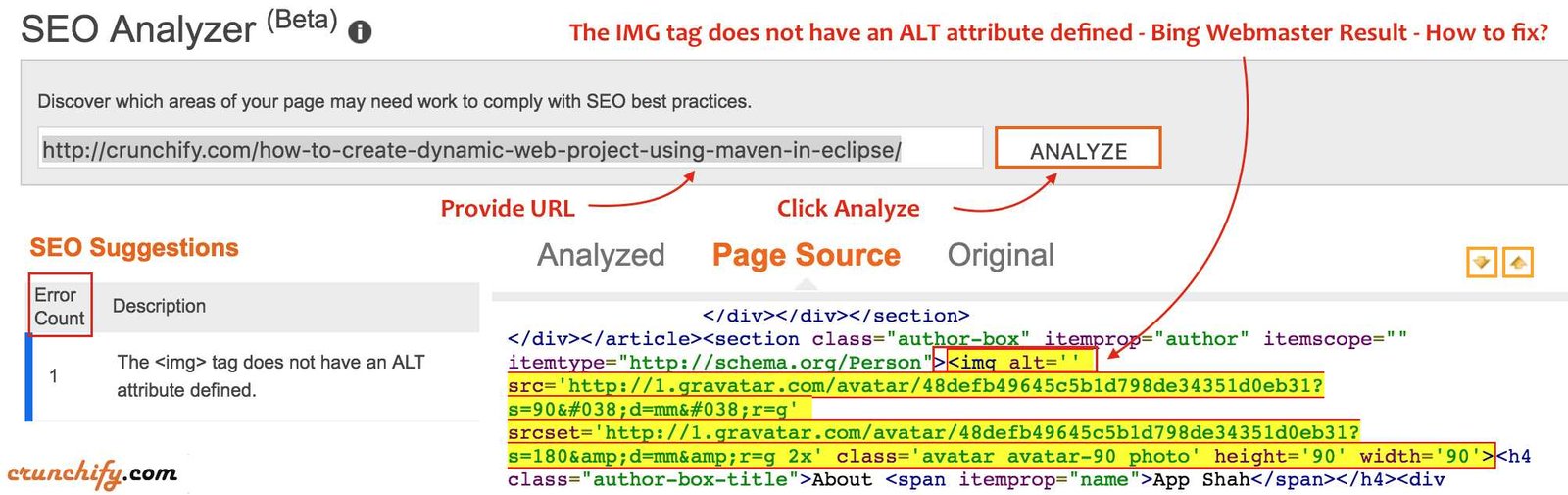
Adding alt attributes to your images is a quick way to improve accessibility and SEO on your website. To fix missing alt tags, simply identify your images and add descriptive alt text that accurately represents each one. Using tools like browser extensions or CMS features can streamline this process, making it easier to ensure all images have meaningful descriptions.
Most importantly, you need to go through your website’s code or content management system (CMS) and add relevant alt text to every image that lacks it. Use clear, descriptive language that explains what’s in the picture, which helps both search engines and users relying on screen readers. Regularly auditing your images ensures your site remains accessible and optimized.
When images on your site don’t have alt attributes, it not only impacts users with visual impairments but also hurts your site’s search engine rankings. Fixing this is straightforward—review your images, add appropriate alt text, and use automation tools for efficiency. Ensuring every image has alt text makes your website more inclusive and improves overall user experience.

How to fix missing alt attributes on images

Missing alt attributes on images are a common problem that can hurt your website’s accessibility and SEO. Alt text helps visually impaired users understand what an image shows. It also improves your chances of appearing higher in search engine results.
Why are alt attributes important?
Alt attributes serve as descriptions for images, making your website more inclusive. They also provide context when images fail to load. Plus, search engines use alt text to understand your images, boosting your SEO efforts.
Common reasons for missing alt attributes
- Images added without alt text during website updates
- Use of third-party tools or templates that don’t set alt tags automatically
- Lack of awareness about accessibility requirements
- Errors in content management systems leading to missing alt attributes
How to identify images missing alt attributes
Using browser extensions
Extensions like WAVE and Axe can scan your site and point out images without alt text. These are easy tools for quick audits.
Manual inspection methods
Right-click on images and select “Inspect” to see if alt tags are present in the HTML. Or, view the page source to check all image tags at once.
Best practices for writing effective alt text
Be descriptive and specific
Describe the image accurately in a few words. Focus on the main content of the image, not irrelevant details.
Avoid keyword stuffing
Use keywords naturally in your alt text without overdoing it. The main goal is clarity, not SEO manipulation.
Include context
Think about why the image is there and what message it conveys. Your alt text should reflect this purpose.
Steps to add alt attributes to images
Using Content Management Systems (CMS)
Most CMS platforms like WordPress, Joomla, or Drupal offer easy ways to add alt text when uploading or editing images. Look for the image settings or media library to add alt descriptions.
Editing HTML directly
If you work with raw HTML, locate the image tag <img> and add or update the alt attribute. Example: <img src="example.jpg" alt="A friendly dog playing fetch" />.
Tools for bulk editing and fixing missing alt attributes
- Bulk editor plugins for WordPress, like Yoast SEO or Media Library Assistant
- HTML editors that support batch editing, such as Adobe Dreamweaver
- Automated scripts using Python or JavaScript, especially for large websites
Using plugins and extensions
Install plugins that scan your site regularly and notify you of images lacking alt tags. Some plugins can also help automate adding descriptive alt text.
Ensuring accessibility compliance
Follow WCAG guidelines
The Web Content Accessibility Guidelines (WCAG) recommend that all images have meaningful alt text unless they are purely decorative.
Mark decorative images appropriately
For images that do not add informational content, use an empty alt attribute alt="". This prevents screen readers from announcing them unnecessarily.
Handling decorative and complex images
Decorative images
Set alt=”” for images purely for decoration to improve accessibility without cluttering screen reader output.
Complex images such as charts or infographics
Provide detailed descriptions separately, often in long descriptions or captions. Use ARIA labels where necessary for accessibility.
Common challenges and solutions
Massive websites
Use automated tools for audits and bulk editing. Prioritize fixing images that impact user experience or SEO the most.
Limited technical skills
Leverage CMS features and plugins designed to simplify the process of adding alt text. Seek help from web developers if needed.
Regular audits and updates
Run periodic checks for missing alt attributes. Keep your website’s images and accessibility features up-to-date. This approach maintains a user-friendly and SEO-optimized website.
Summary of key points
| Action | Description |
|---|---|
| Identify missing alt tags | Use tools and manual inspection to find images lacking descriptions |
| Write descriptive alt text | Be clear, specific, and stay relevant to the image’s purpose |
| Add alt attributes | Use your CMS or direct HTML editing to include alt text | Use tools for efficiency | Bulk editors and automated scripts save time on large sites |
Additional topics to consider
Optimizing image file names and alt text together
Ensure that file names also describe the images accurately. This supports SEO and accessibility efforts.
Monitoring website performance
Optimized images with proper alt attributes contribute to faster load times and better user experience.
Educating your team
Make sure everyone involved in content creation understands the importance of alt attributes, so they add them from the start.
By following these steps, you can effectively fix missing alt attributes and make your website more accessible, SEO-friendly, and user-centric. Regularly reviewing your images and maintaining good practices will lead to a better overall online presence.
How to Find and Fix Image Missing Alt Tag
Frequently Asked Questions
What steps can I take to identify images missing alt attributes on my website?
To find images without alt attributes, use a browser extension or an accessibility auditing tool. These tools scan your webpage and highlight images lacking alt text, making it easier to locate and address them. Regularly checking your site with these tools helps maintain accessibility standards and improves overall user experience.
How can I ensure that new images added to my site include appropriate alt text?
Implement a standardized process where every time you upload images, you also add descriptive alt text. Use a checklist or content management system that prompts you to fill in alt attributes before publishing. Training content creators on the importance of descriptive alt text can also prevent missing attributes in future uploads.
What are best practices for writing effective alt text for images?
Write concise and descriptive alt text that clearly conveys the purpose of the image. Focus on critical information that adds value to the content. Avoid keyword stuffing and be specific; for example, describe the key elements or actions depicted in the image to assist users relying on screen readers.
Can I automate the process of adding alt attributes to images in my website’s code?
Yes, you can automate this process using scripts or plugins that analyze images and generate alt text based on filename, surrounding text, or other metadata. Some content management systems also offer features or extensions to help automatically populate alt attributes, which you can then review and refine.
What should I do if I have a large number of images without alt attributes to update?
Prioritize images based on their importance to content and accessibility. Use bulk editing tools or scripts to add initial alt text based on logical patterns or image filenames. Afterwards, review and improve these descriptions for clarity and accuracy to ensure they serve users effectively.
Final Thoughts
To fix missing alt attributes on images, start by reviewing all images on your website. Use automated tools to identify images lacking alt text quickly. Then, add descriptive alt attributes that clearly explain each image’s purpose or content.
Ensure that the alt text is concise yet informative to improve accessibility and SEO. Regularly audit your site to maintain proper alt attribute usage. Addressing these issues enhances user experience and helps search engines understand your images better.