
To quickly update internal links to point to live pages, use a website crawler or a plugin to identify broken or outdated links and replace them with current URLs. Regularly auditing your links ensures visitors stay engaged and your SEO remains strong.
Updating internal links is essential for maintaining a seamless user experience and boosting your website’s search engine ranking. When pages are moved or renamed, broken links can frustrate visitors and harm your SEO efforts. The key is to identify these outdated or broken links efficiently and update them to direct users to the correct, live pages. In this guide, you’ll learn how to automate the process of finding dead links and how to update your internal links smoothly, so your website stays fresh, functional, and user-friendly.

How to update internal links to point to live pages
Understanding the importance of internal links
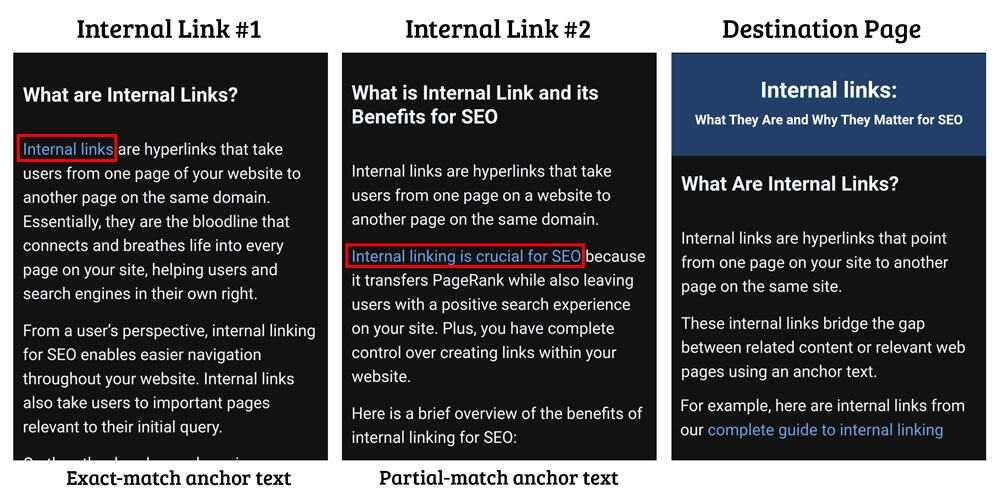
Internal links connect different pages within your website, helping visitors navigate easily. They also assist search engines in understanding your site’s structure. Proper internal linking boosts your SEO by distributing page authority across your site.
Identifying outdated or broken internal links
Start by scanning your website for links that no longer work. Use tools like Screaming Frog or Broken Link Checker to find dead links or URL paths that have changed. Make a list of links that direct users to inactive or old pages.
Assessing which links need updating
Review the list to prioritize links that impact user experience or SEO the most. Focus on links pointing to important content or high-traffic pages. Removing or updating these links helps maintain your site’s credibility.
Planning your internal link updates
Create a strategy that includes updating URLs and ensuring new links are relevant. Decide whether to update the link to an existing live page, replace it with new content, or remove the link altogether. Keeping track in a spreadsheet helps organize the process.
Locating links within your website
Use your website’s content management system (CMS) or site search features to find specific links. For larger sites, consider using crawling tools that highlight all internal links across different pages. Identifying all locations of outdated links reduces missed updates.
Replacing old URLs with live page links
Edit the pages to replace broken or outdated URLs with current, active links. Ensure the new link points directly to the relevant live page. Double-check the URL for correctness and relevance before publishing.
Best practices for updating links
- Use descriptive anchor text to improve accessibility and SEO.
- Avoid overstuffing links with keywords; keep them natural and helpful.
- Ensure links open in the same tab unless external sources or user expectations suggest otherwise.
Utilizing redirects for outdated pages
If a page has been permanently moved, implement a 301 redirect from the old URL to the new live page. This ensures visitors and search engines find the correct content without encountering broken links.
Implementing redirects effectively
Use your website’s server configuration or SEO plugins to set up redirects. Test each redirect to confirm it points to the correct live page. Regularly review redirects to avoid redirect chains or loops that can harm SEO.
Verifying your updates
After updating links, perform thorough testing. Click through your site to ensure links work correctly and direct users to appropriate pages. Use tools like Google Search Console or Screaming Frog to verify no broken links remain.
Maintaining internal links over time
Create a schedule for regular link audits. As your website grows or content changes, revisit your internal links to keep them current. This ongoing process preserves your site’s usability and ranking.
Using tools to automate link management
Leverage plugins or software that monitor and suggest link updates. Tools like Yoast SEO and Screaming Frog can automate parts of this process. Automation helps save time and reduces the chance of human error.
Enhancing user experience and SEO with internal links
Adding relevant internal links to related articles or products helps keep visitors engaged longer. It also improves SEO by spreading link equity across your website’s pages. Maintain a logical linking structure for easy navigation.
Updating internal links to point to live pages is critical for maintaining a healthy, user-friendly website. Regularly audit your links, replace or redirect outdated URLs, and verify your updates. This ongoing effort ensures your website remains accessible, authoritative, and optimized for search engines.
Is There a Limit To How Many Internal Links You Should Point At a Page?
Frequently Asked Questions
How can I identify outdated internal links on my website?
To locate outdated internal links, begin by crawling your website with tools like Screaming Frog or Ahrefs. These tools highlight broken or redirecting links. Additionally, manually review key pages to verify if the links still direct to relevant content. Regularly updating your sitemap and monitoring user feedback can also help you spot internal links that need attention.
What steps should I take to update internal links to point to new live pages?
First, compile a list of internal links that point to outdated or moved pages. Next, access your website’s content management system (CMS) or file system and locate the links within your pages or posts. Replace the old URLs with the current, live page addresses. After updating, test each link to ensure it navigates correctly. Finally, clear cache and re-crawl your site to confirm all links are functioning properly.
Are there any tools that can help automate updating internal links?
Yes, several SEO tools like Screaming Frog, Ahrefs, or SEMrush offer features to identify and manage internal links. Some of these tools allow you to export lists of broken or outdated links and provide options to update them directly or generate reports to assist manual updates. Using plugins or scripts tailored for your CMS, such as WordPress plugins, can also automate the process of fixing internal links efficiently.
How often should I review and update internal links on my website?
It’s advisable to review your internal links at least quarterly, especially after major site updates or content additions. Regular audits help ensure that all links remain accurate and relevant, improving user experience and SEO performance. Additionally, monitor website analytics to identify any navigation issues or spikes in 404 errors that might indicate outdated links needing updates.
What precautions should I take before updating internal links?
Before making bulk changes, back up your website to prevent data loss. Verify the new URLs are correct and live, avoiding broken links or redirects. Test updates on a staging environment if possible, to observe how changes affect your site’s structure. After applying updates, check for any unexpected issues such as broken page layouts or navigation problems, to ensure a smooth transition for visitors.
Final Thoughts
Updating internal links to point to live pages ensures your website remains accurate and user-friendly. Start by auditing your site to identify outdated or broken links. Replace these links with current URLs that direct visitors to relevant, active pages. Remember, how to update internal links to point to live pages efficiently improves your site’s overall performance and SEO. Keep this process consistent to maintain a seamless user experience and optimize your site’s navigation.