
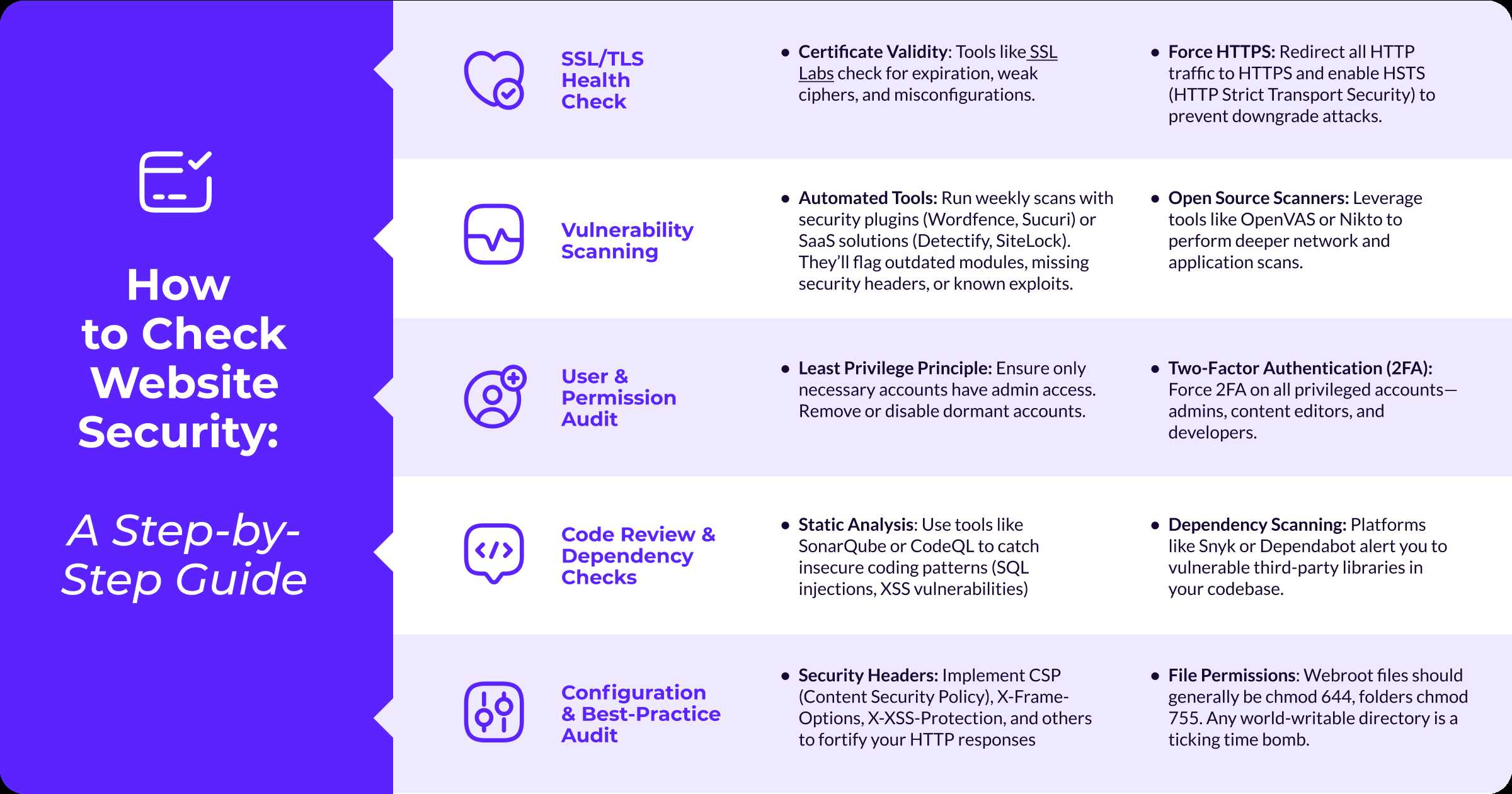
To quickly assess your website’s security and plugin health, start by conducting a comprehensive vulnerability scan, review plugin updates, and check for any suspicious activity or errors. Regularly updating plugins, backing up your site, and monitoring for unusual behavior are key steps to keep your site safe and running smoothly.
Auditing your website’s security and plugin health is essential to prevent cyber threats and ensure optimal performance. This process involves examining your site’s defenses, checking for outdated or vulnerable plugins, and identifying potential issues before they become major problems. By staying proactive and systematic, you can maintain a secure, reliable website that builds trust with your visitors and protects your data. In this guide, we’ll explore practical steps to perform a thorough audit and keep your website in top shape.

How to audit website security and plugin health
Why Regular Website Security Audits Matter
Keeping your website safe is essential to protect your visitors and your data. Regular security audits help identify vulnerabilities before hackers can exploit them. They also ensure your website runs smoothly and maintains credibility.
Understanding Common Security Threats
Cyber threats come in many forms, including malware, phishing attacks, and brute-force hacking. Recognizing these threats allows you to take targeted actions to defend your site. Staying informed about evolving attack methods keeps your security measures up-to-date.
Steps to Audit Your Website Security
Conducting a comprehensive security audit involves several key steps:
- Update Everything: Ensure your CMS, plugins, and themes are running the latest versions. Updates often patch security flaws.
- Scan for Malware: Use trusted security tools to scan your site for malicious files or code.
- Check User Permissions: Review admin and user roles to prevent unauthorized access.
- Inspect SSL Certification: Confirm your site has a valid SSL certificate to encrypt data transfer.
- Test for Vulnerabilities: Use security testing tools to identify weak points in your website’s architecture.
Using Security Tools and Plugins
Leverage specialized tools to simplify the audit process:
| Tool Name | Purpose | Features |
|---|---|---|
| Wordfence Security | Firewall and malware scanner | Real-time threat defense, login security, blocking features |
| Sucuri Security | Website security platform | Security activity auditing, blacklist monitoring, malware removal |
| iThemes Security | WordPress security plugin | Brute-force attack prevention, file change detection, 404 detection |
Assessing Plugin Health
Plugins enhance your website’s features but can also introduce vulnerabilities if outdated or poorly coded. Regularly reviewing plugin health is critical for security.
Steps to Check Plugin Effectiveness and Safety
- Update Plugins Regularly: Keep all plugins current to patch security holes.
- Remove Unused Plugins: Delete plugins that are no longer needed to reduce attack vectors.
- Check Compatibility: Ensure plugins work well with your CMS version and other plugins.
- Review Plugin Sources: Download plugins only from reputable sources like official repositories.
- Test Plugin Performance: Confirm that plugins do not slow down your site or cause errors.
Monitoring Plugin Performance and Conflicts
Conflicts between plugins can cause site crashes or security issues. Use tools to monitor plugin activity and detect conflicts early.
Best Practices for Plugin Management
- Set up a staging environment for testing updates before applying them on your live site.
- Keep an audit trail of plugin updates and changes.
- Regularly scan for plugin vulnerabilities with security plugins.
Advanced Security Measures
For heightened security, consider implementing additional measures beyond basic audits.
Implementing Firewalls and IP Blocking
Use web application firewalls (WAF) to block malicious traffic before it reaches your server. Blacklist suspicious IP addresses to prevent repeated attacks.
Enabling Two-Factor Authentication
Require two-factor authentication for admin logins to add an extra layer of security against unauthorized access.
Backup and Recovery Plans
Regular backups ensure you can restore your website quickly after an attack. Store backups securely off-site and test recovery procedures periodically.
Education and Staying Updated
Stay informed about new security threats and best practices. Participate in security forums and subscribe to relevant newsletters.
Regularly auditing your website’s security and plugin health is vital for maintaining a safe, efficient, and trustworthy online presence. By following these detailed steps and using the right tools, you can identify vulnerabilities early and keep your website protected against evolving threats. Prioritize updates, monitor plugins, and implement advanced security solutions to ensure your website remains secure, fast, and reliable.
How to Perform a WordPress Security Audit 2020
Frequently Asked Questions
What tools can I use to identify security vulnerabilities in my website?
Use security scanning tools like Sucuri SiteCheck, Qualys SSL Labs, or Nessus to analyze your website for common vulnerabilities. These tools scan for malware, outdated software, misconfigurations, and other security issues. Regularly running these scans helps you stay aware of potential threats and address them promptly.
How can I verify the integrity of my website plugins?
Check plugin authenticity by ensuring they come from trusted sources like official repositories or well-known developers. Keep an eye on plugin update histories and user reviews to identify any suspicious activity. Additionally, compare plugin files with their original versions and run security scans on plugin directories to detect any modifications or malicious code.
What steps should I take to monitor ongoing website security?
Implement continuous monitoring by setting up security alerts for unusual activities, failed login attempts, or unauthorized file changes. Use intrusion detection systems (IDS) and enable multi-factor authentication for admin accounts. Regularly review server logs and maintain backups to quickly restore your site if needed.
How can I assess the health of my website’s plugins without disrupting functionality?
Conduct a staged testing environment where you can disable or update plugins safely. Run compatibility tests after updates and check for broken features. Use debugging tools or browser console logs to identify issues caused by recent plugin changes, ensuring the live site remains functional.
What are best practices for keeping website security and plugins up to date?
Establish a routine schedule to update all plugins, themes, and core software promptly after official releases. Remove unused plugins and disable those that are inactive. Regularly review your security settings and apply patches to close vulnerabilities, reducing the risk of attacks.
Final Thoughts
Conducting regular security audits helps identify vulnerabilities and patch weaknesses before they are exploited. Use tools like vulnerability scanners and review your website’s access controls to ensure strong protection. Keep plugins updated and remove any that are outdated or unnecessary.
To maintain a secure website, monitor activity logs and perform routine backups, preventing data loss. Remember, how to audit website security and plugin health is crucial for ongoing website safety and performance. Consistent checks ensure your site remains secure, functional, and trustworthy.
Recommended SEO


