
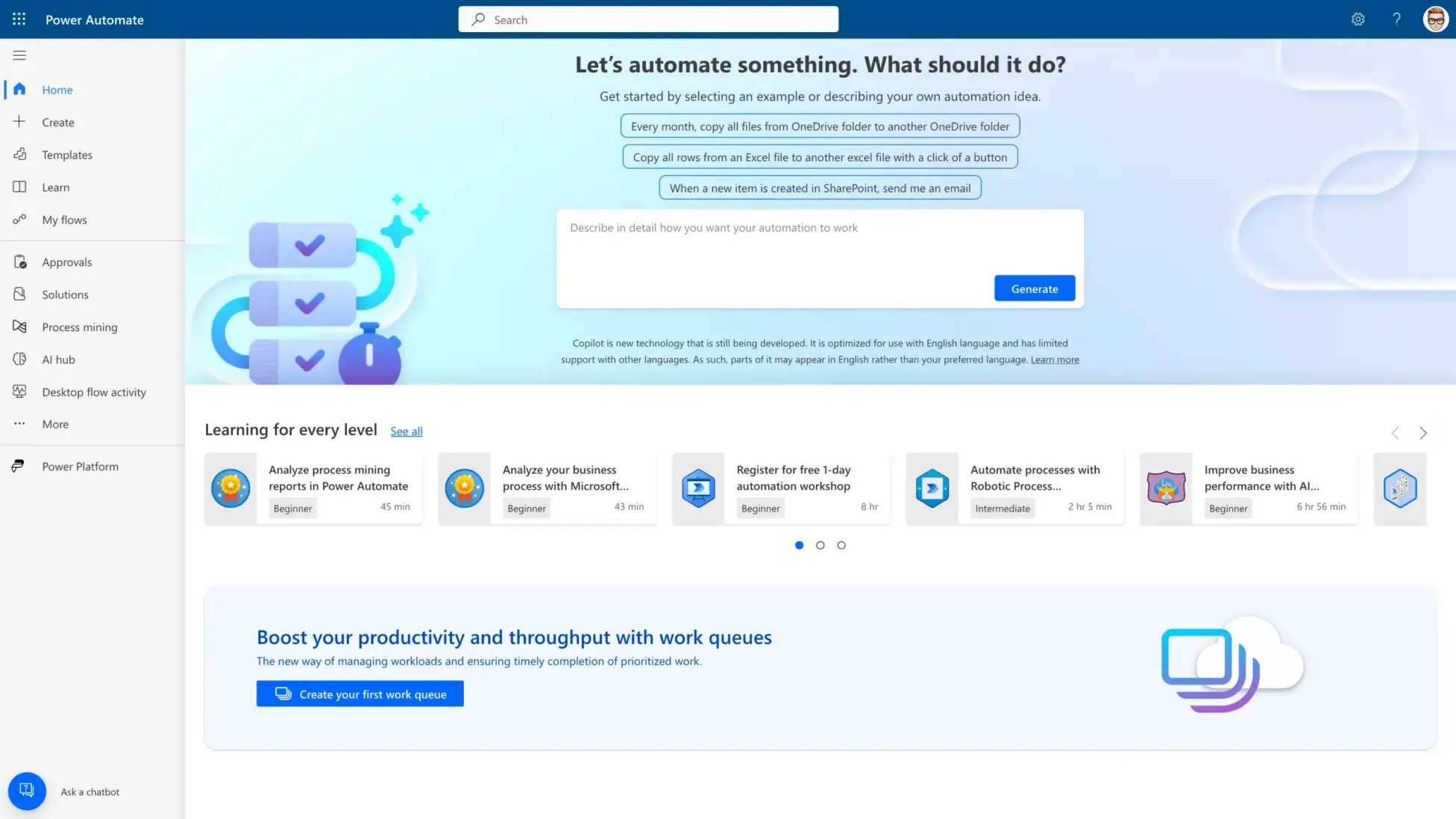
Automating task reminders with project apps can transform the way you stay on top of your workload, saving time and reducing stress. Imagine never forgetting a deadline again—your app does the heavy lifting by sending timely alerts for upcoming tasks. To set this up, you can customize reminders within your project management tools, using features like recurring alerts, deadlines, and notifications that trigger automatically. This streamlines your workflow and keeps everyone on the same page effortlessly.
By integrating automation into your project apps, you ensure that reminders are sent at the right time without manual intervention, allowing you to focus on what truly matters. Whether you’re managing a team or juggling personal projects, these tools make task management smarter, simpler, and more reliable.
Getting started is straightforward—just explore your app’s notification settings, set reminders for key dates, and opt for automation options like recurring alerts or integrations with other productivity tools. This way, staying organized becomes an effortless part of your routine.

How to automate task reminders with project apps
Automating task reminders with project apps can make managing your work much easier. Instead of manually checking your to-do list, these apps help you stay on top of deadlines automatically. This way, you won’t forget important tasks or miss deadlines.
Understanding the importance of automated reminders
Automated reminders ensure you receive timely alerts about upcoming or overdue tasks. They help prevent tasks from slipping through the cracks. With reminders, you can prioritize work effectively and reduce stress.
Choosing the right project management app for automation
There are many apps available that offer reminder features. Popular options include Trello, Asana, Monday.com, ClickUp, and Notion. Look for apps that integrate well with your workflow and offer customizable reminder settings.
Features to consider when selecting an app
- Automation capabilities – How easily can you set up automatic reminders?
- Customizable alerts – Can you choose notifications by email, push notification, or in-app alert?
- Integration options – Does the app connect with your email, calendar, or other tools?
- User-friendliness – Is the app simple enough for everyone on your team to use?
Setting up automated task reminders step-by-step
Once you pick an app, setting up reminders involves a few key steps. Follow these to ensure your reminders work smoothly and help you stay organized.
Step 1: Create clear task descriptions and deadlines
Start by clearly defining each task with specific details and due dates. Accurate information helps the app generate timely reminders without confusion. Make sure to assign tasks to the right team members.
Step 2: Enable notifications and reminders
Go into your app’s settings and turn on notification features. Choose how and when you want to be alerted—whether days, hours, or minutes before a deadline. Set default reminder times for recurring tasks.
Step 3: Use automation rules or workflows
Many apps have automation features where you set rules such as “send a reminder 24 hours before a task is due.” Use these to trigger reminders automatically without manual intervention. Adjust rules based on task priority or team member preferences.
Step 4: Customize reminder messages
Some apps allow you to personalize reminder notifications. Write clear messages that specify what the task is and when it’s due. Personalized messages increase the chances of task completion.
Utilizing advanced automation features
Recurring reminders for repeating tasks
If you have ongoing tasks, set up recurring reminders. This ensures you don’t forget routine tasks like weekly reports or monthly meetings. Automation saves time by handling these repeatedly without manual updates.
Conditional reminders based on task status
Set up reminders that trigger only if certain conditions are met. For example, receive a reminder only if a task remains incomplete after a specific date. These targeted alerts prevent unnecessary notifications.
Integrating task reminders with other tools
Link your project app with calendars, email, or messaging platforms. Integration allows reminders to appear in places you already check regularly. This increases the likelihood that you’ll see your alerts in time.
Calendar integrations
Sync your project app with Google Calendar or Outlook to see upcoming deadlines directly in your schedule. Automated reminders can then be set to appear as calendar events.
Email and messaging platform integrations
Connect with Slack, Microsoft Teams, or your email client. This way, reminders will pop up in your preferred communication channel, making them hard to overlook.
Tips for effective automated reminders
- Keep reminders concise and clear – Brief messages with specific task details work best.
- Set multiple reminders for critical tasks – Receive alerts at different intervals, such as one day and one hour before due.
- Review and adjust reminder settings regularly – Fine-tune your alerts based on what works for you and your team.
- Test your automation – Run trial reminders to ensure they trigger correctly and are received on time.
Common mistakes to avoid when automating reminders
- Overloading with notifications – Too many alerts can be overwhelming. Be selective about what you automate.
- Setting vague deadlines – Clear due dates lead to more effective reminders.
- Ignoring reminder data – Use feedback to improve your automation rules for better results.
Monitoring the success of your automated reminder system
Track how effectively your reminders lead to task completion. Use app analytics or feedback from team members. Adjust your automation rules based on this data for continuous improvement.
Additional features to enhance reminder effectiveness
- Priority-based reminders – Focus alerts on high-priority tasks first.
- Reminder customization per team member – Different team members may prefer different notification styles or times.
- Reminders for collaborative tasks – Notify all relevant team members when a task needs collective input.
Automating task reminders with project apps requires careful setup and ongoing adjustments. By choosing the right tools, creating clear rules, and integrating with your workflow, you can stay organized without constant manual check-ins. Consistent use of automation will save you time and reduce the risk of missing important deadlines, making your project management more efficient and less stressful.
Automate Emailing Excel Task Reminders with ZERO Coding!
Frequently Asked Questions
How can I set up recurring task reminders in project management software?
To set up recurring task reminders, access your project’s task settings and locate the option for recurrence. Select the frequency, such as daily, weekly, or monthly, and customize the reminder time. Save your settings, and the app will automatically generate reminders at each interval, ensuring you stay on top of ongoing tasks without manual rescheduling.
What features should I look for to automate reminders effectively?
Seek project apps that offer automation rules, customizable notification options, and integration with your calendar or email. Features like conditional reminders, priority notifications, and cross-platform alerts help tailor reminders to your workflow, ensuring timely updates without overwhelming your team with unnecessary alerts.
Can I assign different reminder schedules to multiple team members?
Yes, most project management tools allow you to assign individual reminder schedules based on each team member’s responsibilities. You can set specific times, frequencies, and notification methods for each person, making sure everyone receives relevant alerts and stays aligned with project deadlines.
How do automation rules improve task follow-up in project apps?
Automation rules help you set specific triggers, such as task status changes or due date approaches, which automatically generate reminders. This reduces manual follow-up, ensures tasks are addressed promptly, and keeps the entire team informed about upcoming or overdue items without constant oversight.
Is it possible to integrate reminder automation with other tools I use?
Many project apps support integrations with communication platforms like Slack, email services, or calendar apps. These integrations allow you to extend reminder automation beyond the app, sending notifications directly to your preferred tools and ensuring you do not miss important updates regardless of where you work.
Final Thoughts
How to automate task reminders with project apps simplifies managing deadlines and boosts productivity. Set up notifications within your app to automatically alert you about upcoming tasks. Customize reminder timings to suit your workflow for maximum efficiency.
Automating reminders reduces manual follow-ups and helps keep your team on track. By integrating these features, you ensure tasks are never overlooked. This approach makes project management more organized and less stressful.