
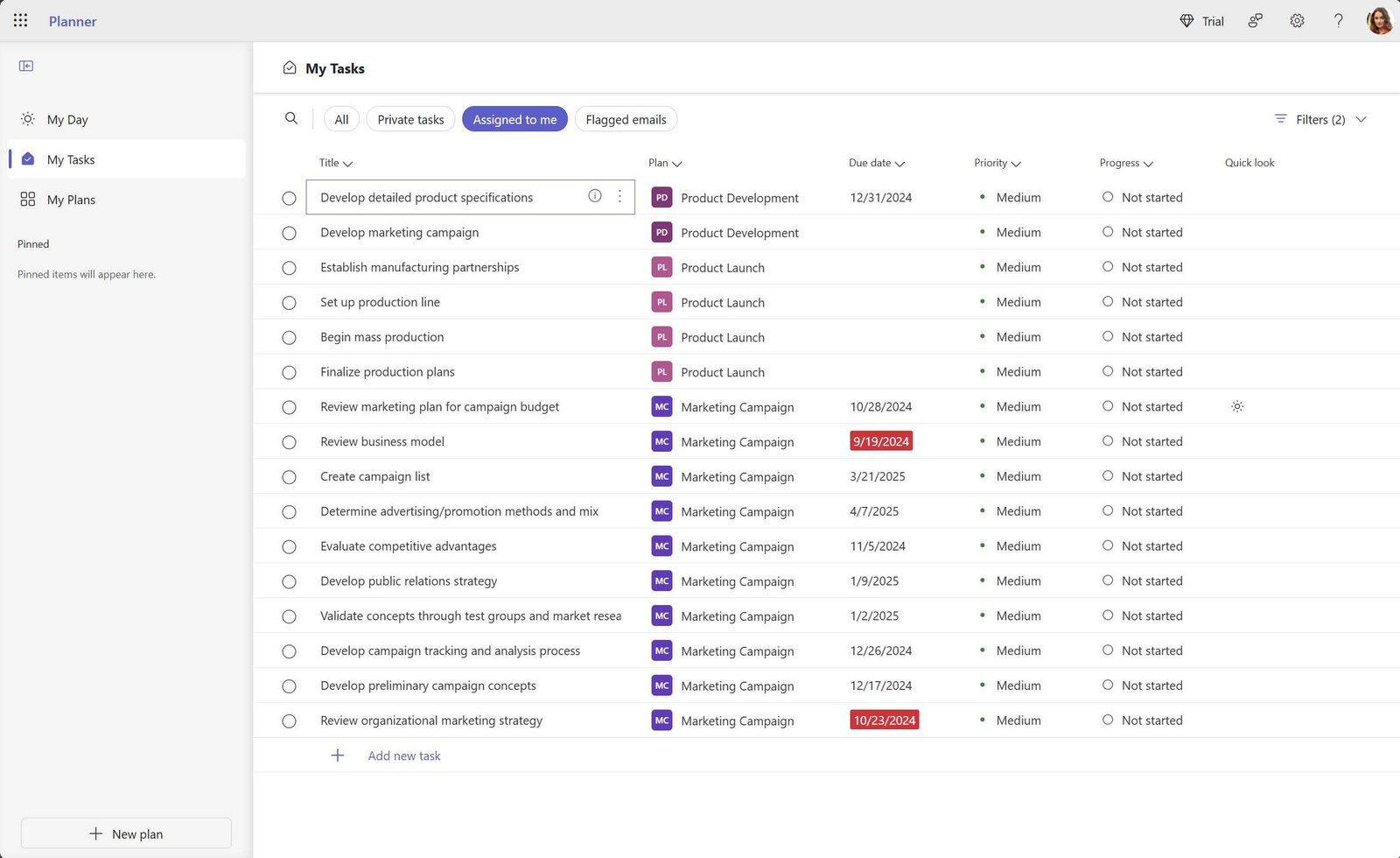
Quick Answer: To communicate and assign work in Microsoft Planner, create a plan, add team members, assign tasks with deadlines, and use comments and notifications to keep everyone updated. Regularly check task progress and use visual boards to collaborate effectively.
Microsoft Planner is a fantastic tool for teams looking to streamline communication and task management. With its simple interface, you can easily create plans, assign tasks to team members, and set deadlines to keep everyone on track. The built-in comment feature ensures that all communication about tasks happens in one place, reducing confusion. Notifications alert team members about updates, ensuring everyone stays informed. By using visual boards and labels, you can keep the workflow transparent and organized. Whether you’re managing a small project or coordinating across teams, Microsoft Planner simplifies how you communicate and assign work, making teamwork more efficient and less stressful.

How to communicate and assign work using Microsoft Planner
Understanding the importance of effective communication in team projects
Effective communication is the backbone of successful teamwork. It helps everyone stay on the same page and ensures tasks are completed on time. Using tools like Microsoft Planner makes this process easier and more organized. Clear communication reduces confusion and boosts productivity within your team.
Getting started with Microsoft Planner for task management
Microsoft Planner is a visual tool that helps teams organize, assign, and track tasks. It is integrated into Microsoft 365, making collaboration seamless. To begin, create a new plan and invite your team members. This initial setup lays the foundation for smooth communication and task assignment.
Creating a plan that suits your team’s needs
Start by defining the scope of your project or ongoing work. Organize tasks into buckets representing different phases or categories. Use clear labels and color-code items for quick visual reference. A well-structured plan makes it easier for everyone to understand their roles and responsibilities.
Assigning work effectively using Microsoft Planner
To assign a task, click on “Add task” within a bucket. Fill in details such as title, due date, and description. Assign the task to one or multiple team members by selecting their names. Clear assignment helps team members know exactly what they need to do and by when.
Microsoft Planner allows you to add labels to tasks, such as “Urgent,” “Review,” or “In Progress.” Customize labels based on your team’s workflow. This feature helps prioritize work and makes filtering tasks easier when managing large projects.
Setting deadlines and priorities to streamline work
Include due dates when creating tasks to keep everyone aware of deadlines. Prioritize tasks using the priority setting—Low, Medium, or Important—to ensure critical work gets attention. Deadlines and priorities help team members manage their workload effectively.
Enhancing communication through comments and updates
Team members can add comments directly on tasks to ask questions or provide updates. Use mentions with the “@” symbol to notify specific team members. Regular comments keep everyone informed and can clarify task requirements or changes quickly.
Utilizing notifications to stay informed
Microsoft Planner sends notifications for important activities like task assignments or updates. Encourage your team to check alerts regularly. Notifications ensure that everyone is aware of changes and can act promptly.
Integrating Microsoft Planner with other tools for seamless communication
Microsoft Planner works well with Outlook, Teams, and SharePoint. Link tasks to Outlook calendar for deadline reminders. Use Microsoft Teams to discuss tasks in real-time, sharing updates and files directly related to Planner tasks.
Tracking progress with visual dashboards and charts
Microsoft Planner offers charts and visual dashboards that display task status, completion rates, and workload distribution. Use these visuals during team meetings to assess progress and identify bottlenecks quickly.
Adjusting tasks and reassigning work efficiently
If priorities shift, easily update task details or reassign work to different team members. Drag and drop tasks between buckets to reflect changes in status. Regular updates keep your plan flexible and responsive to project needs.
Managing feedback and resolving issues within the platform
Leverage comments for feedback and clarify expectations. Address issues by reassigning or adding new tasks to resolve problems efficiently. Clear communication within Planner reduces misunderstandings and keeps work on track.
Maintaining accountability with regular updates
Encourage team members to update their task statuses frequently. Use checklists within tasks for sub-tasks, ensuring detailed tracking of progress. Regular updates promote accountability and help managers oversee project development.
Best practices for effective communication and task assignment
Establish clear guidelines on how to use Planner features. Schedule regular review meetings to discuss progress and address issues. Encourage transparency and prompt responses to foster a collaborative environment.
Tips to improve team engagement with Microsoft Planner
Use colorful labels and visual cues to keep tasks engaging. Recognize completed work in meetings to boost morale. Provide training or resources to help team members utilize Planner’s full capabilities.
Advanced features: automating notifications and reminders
Set up automated reminders for upcoming deadlines or overdue tasks. Use Microsoft Power Automate to create custom workflows that notify team members about important updates. Automation reduces manual follow-ups and ensures nothing is overlooked.
Reporting and analyzing team performance
Export data from Planner or integrate with Power BI to generate detailed reports. Analyze task completion times and workload distribution to identify areas for improvement. Regular reviews help refine your communication and assignment strategies.
Using Microsoft Planner effectively enhances communication and simplifies task assignment within your team. By organizing work visually, setting clear deadlines, and maintaining open comments, you create a transparent and accountable environment. Integrating Planner with other Microsoft 365 tools maximizes collaboration and keeps everyone aligned toward shared goals. Regularly updating, reviewing, and adjusting plans ensures your team stays productive and focused.
How to use the NEW Microsoft Planner in Teams
Frequently Asked Questions
How can team members receive notifications about assigned tasks in Microsoft Planner?
Team members receive notifications automatically when tasks are assigned to them or when deadlines are approaching. They can customize notification settings within their Microsoft Planner or Outlook account to ensure they stay informed about updates, comments, and changes related to their work.
What steps should I follow to assign a task to multiple team members simultaneously?
To assign a task to several team members, open the task card and click on the “Assign” button. Select multiple colleagues from the list of team members by holding down the Ctrl (or Command) key while clicking. This way, you can assign one task to multiple people at once, ensuring everyone is aware of their responsibilities.
How can I clarify task responsibilities and communication within Microsoft Planner?
Use the comment section within each task to communicate specific instructions, ask questions, or provide updates. Mention colleagues using the “@” symbol to notify them directly. Keeping conversations organized inside tasks helps maintain transparency and ensures everyone understands their roles.
What options are available to update team members about task progress?
You can update the progress status directly on the task card by selecting labels or changing the progress percentage. Additionally, use the comments section to provide regular updates or flag any issues. Integrating Planner with other tools like Teams ensures real-time communication about ongoing work.
How can I effectively delegate tasks and monitor their completion in Microsoft Planner?
Assign tasks with clear deadlines and detailed descriptions to ensure responsibilities are understood. Utilize the “Progress” tracking and visual status indicators to monitor real-time updates. Regularly review the Planner board and follow up on overdue or stalled tasks to keep projects on track.
Final Thoughts
How to communicate and assign work using Microsoft Planner is essential for effective team management. Clear task descriptions and deadlines ensure everyone understands their responsibilities. Use comment sections to facilitate direct communication and updates. Assign tasks to team members, making workload distribution transparent.
By actively utilizing these features, teams stay coordinated and productive. Focusing on straightforward communication helps prevent misunderstandings. Overall, implementing these practices with Microsoft Planner simplifies task management and boosts team efficiency.