
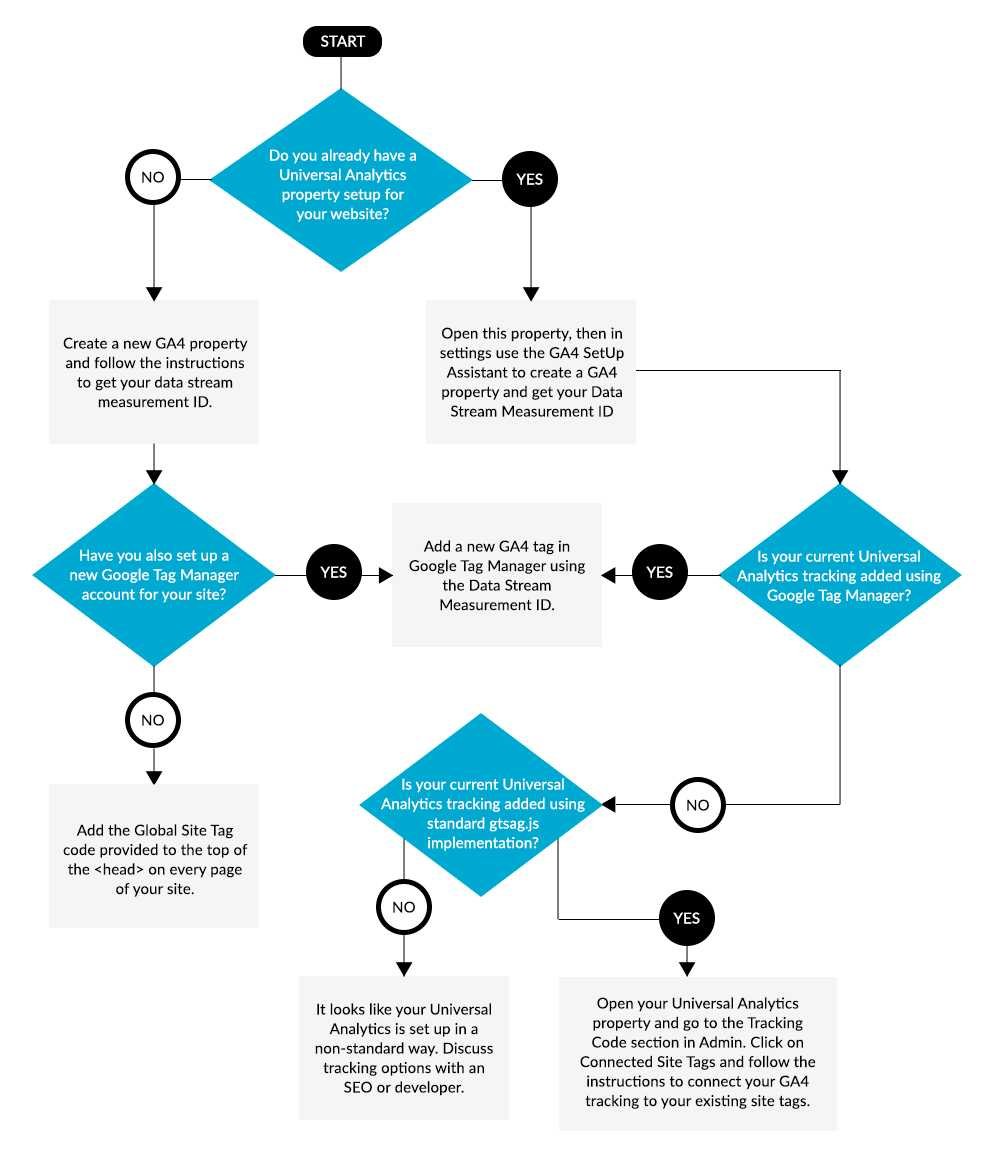
To set up GA4 data streams for your website, start by creating a new property in your Google Analytics account, then add a data stream specific to your website. You’ll need to install the provided tracking code on your site and configure basic settings to ensure accurate data collection. It’s a straightforward process that allows you to track user interactions effectively, giving you valuable insights for your digital strategy.
In short, configuring GA4 data streams involves creating a new data stream within your GA4 property, adding the tracking code to your website, and customizing settings for optimal data collection. This setup enables you to monitor user activity seamlessly and improve your website’s performance.
Getting your GA4 data streams up and running is essential for understanding how visitors interact with your website. From creating a new property in Google Analytics to installing the tracking code on your pages, each step is designed to be user-friendly and quick to implement. By doing this, you can access detailed insights into your audience, improve marketing efforts, and make data-driven decisions to grow your online presence.

How to configure GA4 data streams for your website
Setting up GA4 data streams correctly is essential to tracking your website traffic effectively. It helps you collect accurate data about visitor behavior and website performance. This guide will walk you through each step needed to configure GA4 data streams efficiently.
Understanding GA4 Data Streams
GA4 data streams are channels through which your website or app sends data to Google Analytics. They serve as connectors that enable data collection from different sources. You can create multiple data streams for different websites or apps under the same GA4 property.
Each data stream captures specific details like page views, user interactions, and events. Proper understanding of data streams helps in organizing your data collection process and analyzing it effectively.
Creating a GA4 Property
Before setting up data streams, ensure you have a GA4 property. Log into your Google Analytics account and click on the “Admin” gear icon. Under the “Account” column, select or create an account.
In the “Property” column, click on “Create Property” and fill in your website details. Choose “Web” as the platform to start configuring your data stream. This step is crucial because it lays the foundation for all data collection.
Adding a New Data Stream to Your GA4 Property
Step-by-step process
- Navigate to the “Admin” section of your GA4 property.
- Under the “Property” column, click on “Data Streams.”
- Select “Add Stream” and choose “Web” for your website.
- Enter your website URL and give the stream a descriptive name.
- Click “Create Stream” to generate your data stream.
This process connects your website to GA4, enabling data transfer and collection.
Configuring Basic Data Stream Settings
Once your data stream is created, you can customize its settings. These options influence what data is collected and how it’s processed.
- Enhanced measurement: Enable this to automatically track common interactions such as page views, scrolls, outbound clicks, site search, video engagement, and file downloads.
- Stream URL: Review and verify your website address correctly appears here.
- IP anonymization: Decide whether to anonymize user IP addresses for privacy compliance.
Implementing the GA4 Tracking Code on Your Website
Getting your tracking code
In your data stream details, scroll down to find the “Tagging Instructions.” Choose the “Global Site Tag” (gtag.js) method for easy integration.
Adding the code
Copy the provided code snippet and paste it into the <head> section of every webpage you want to track. This step ensures all pages send data accurately to GA4.
For websites built on CMS platforms like WordPress, you can use plugins or theme options to insert the code globally. Make sure the code appears on all pages for comprehensive tracking.
Verifying Data Collection
After implementing the tracking code, it’s vital to check that data flows correctly into GA4. Visit your website in a new tab and navigate to the “Real-time” report in GA4.
If you see activity reflected in real-time, your setup works. If not, double-check your code placement and ensure no errors are present.
Configuring Event Tracking for Your Website
Automatic events with enhanced measurement
GA4’s enhanced measurement feature automatically tracks key interactions. You can toggle these options in your data stream settings.
Custom events setup
For more detailed insights, set up custom events like button clicks, form submissions, or video plays. Use Google Tag Manager or modify your gtag.js code directly.
- Google Tag Manager: Create tags for specific interactions and trigger them on user actions.
- Direct code modification: Add custom event code within your website’s scripts for precise tracking.
Configuring Data Filters
Filters help exclude internal traffic or test data from your reports. In GA4, navigate to “Data Settings” then “Data Filters” to set up rules.
For example, you can filter out visits from your company IP addresses or specific user segments. Proper filtering improves report accuracy and relevance.
Linking Google Ads and Other Integrations
Integrate Google Ads to measure ad performance against website engagement. In GA4, go to “Admin” and select “Link” under “Product Links.”
Follow prompts to link your accounts, which allows for conversion tracking and audience creation for remarketing campaigns.
Additional integrations, such as Search Console and BigQuery, can enhance your data analysis capabilities. Connect them via the “Admin” section for a comprehensive data environment.
Setting Up Conversion Events
Identify key actions on your website that signify success, like purchases or sign-ups. Mark these as conversions in GA4 for focused reporting.
Navigate to “Events” in GA4, select existing events, and toggle “Mark as conversion.” You can also create new events if needed for specific actions.
Tracking conversions helps measure your website’s performance against your goals effectively.
Maintaining and Updating Data Streams
Regularly review your data streams to ensure accurate data collection. Update settings if your website undergoes significant changes.
Check for new features in GA4 that might improve your tracking strategy. Continuous updates keep your analytics aligned with your business needs.
Monitor data quality and adjust filters or event tracking as your website evolves or new engagement points are added.
Configuring GA4 data streams for your website involves precise setup and continuous management. Proper implementation ensures you gather meaningful insights, enabling informed decisions for website improvements and marketing strategies.
Understanding Data Streams In Google Analytics 4 (Everything You Need To Know)
Frequently Asked Questions
What are the initial steps to set up a new data stream in GA4 for my website?
To start, log into your Google Analytics account and select your property. Navigate to the ‘Data Streams’ section and click on ‘Add stream’. Choose ‘Web’ as the platform, then enter your website URL and name your stream. Save your settings to create the data stream, which will generate a measurement ID that you will need to implement on your website.
How can I verify that my GA4 data stream is correctly collecting data from my website?
After setting up your data stream and adding the measurement ID to your website, visit your site and perform some actions, like navigating different pages. In GA4, go to the ‘Real-time’ reports to see if your activities are being recorded. If you see activity, your data stream works correctly. If not, double-check the implementation of the measurement ID and ensure the tracking code is properly installed on all pages.
What should I do if my website has multiple subdomains to ensure accurate data collection?
If your website includes multiple subdomains, configure your data stream to include cross-domain tracking. In GA4, go to your data stream settings, select ‘More tagging settings’, and enable ‘Cross-domain tracking’. Add your main domain and subdomains to the list, so user sessions are tracked seamlessly across all sections of your website, providing comprehensive analytics data.
How can I customize data collection within my GA4 data stream for specific user interactions?
You can set up custom events and parameters within your GA4 data stream to track specific actions users perform on your site. Use Google Tag Manager or directly modify your website’s code to send custom events, such as button clicks or form submissions. In GA4, navigate to ‘Events’ and ‘Conversions’ to monitor these actions and analyze user behavior more precisely.
What are the best practices for managing multiple data streams on a single website?
If your website requires multiple data streams, organize each stream based on different sections or functionalities. Use clear naming conventions and assign specific measurement settings for each stream. Regularly review your data to identify any overlaps or gaps, and ensure your tracking codes are correctly implemented on all relevant pages to maintain accurate data collection.
Final Thoughts
Configuring GA4 data streams for your website involves creating a new data stream in your GA4 property and adding the tracking code to your site. Ensure you select the correct platform, such as web, and input your website URL. Adjust the settings to collect the desired data, like enhanced measurement options.
Test your setup to confirm data flows correctly into GA4. Check real-time reports to verify the tracking code functions properly. Proper configuration guarantees accurate insights for your website’s performance.
How to configure GA4 data streams for your website is essential for effective data analysis. Follow these steps precisely to ensure your data collection aligns with your goals.