
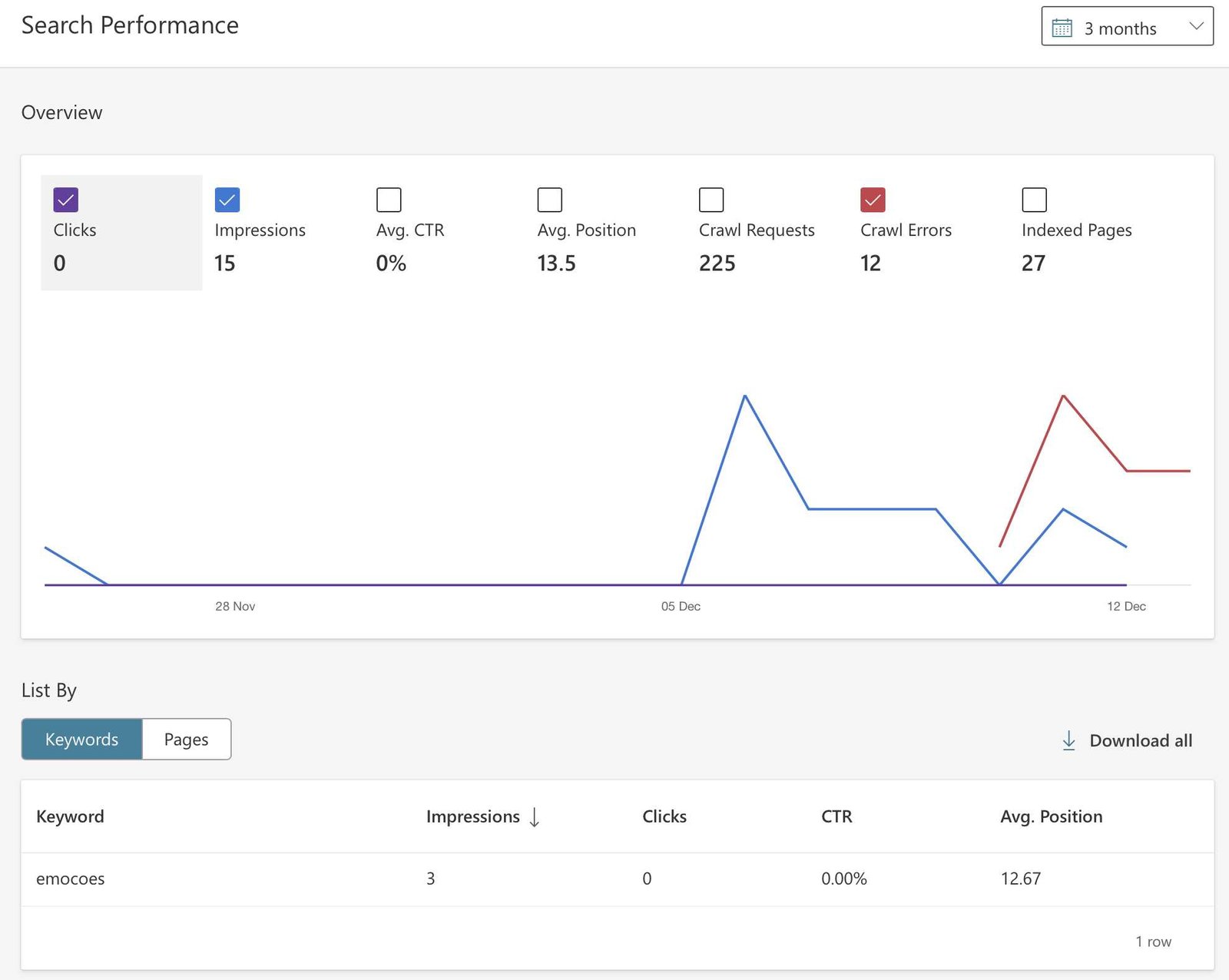
To quickly tackle crawl errors reported by Bing, regularly monitor your Bing Webmaster Tools dashboard, identify the errors listed, and address them promptly by fixing broken links, resolving server issues, or updating incorrect URLs. These steps ensure Bing can crawl your site smoothly and improve your search visibility.
In short, detecting crawl errors involves checking Bing Webmaster Tools for error reports and understanding their causes. Fixing these issues typically requires updating or removing problematic pages, ensuring proper server responses, and maintaining a clean, organized website structure. Acting swiftly on these errors helps maintain your site’s SEO health and ensures Bing can index your content effectively.
When it comes to managing your website’s visibility on Bing, understanding crawl errors is crucial. Crawl errors can prevent Bing’s bots from accessing and indexing your pages, which may negatively impact your search rankings. Fortunately, with the right approach, you can easily identify these errors through Bing Webmaster Tools and then fix them by addressing issues like broken links, server errors, or incorrect URLs. Regular monitoring and maintenance help keep your website in prime shape for search engines, ensuring your content reaches your audience without technical hitches. Keeping your website error-free not only improves your SEO performance but also enhances the overall user experience.

How to detect and fix crawl errors reported by Bing
Understanding Bing Crawl Errors
Bing crawl errors happen when the search engine’s bots try to visit your website but encounter obstacles. These errors can prevent your pages from appearing in Bing search results, affecting your site’s visibility. Recognizing the common crawl errors is the first step to fixing them effectively.
Types of Bing Crawl Errors
Bing reports different kinds of crawl errors, each indicating a specific problem. These include:
- 404 Not Found: The page no longer exists or the URL is incorrect.
- 301 or 302 Redirects: Improper redirect setups can confuse Bing’s crawler.
- Blocked by Robots.txt: Your settings prevent Bingbot from accessing certain pages.
- Server Errors (5xx): Server issues cause pages to be temporarily inaccessible.
- Timeout Errors: Bingbot stops trying to access pages because of slow responses.
How to Detect Crawl Errors in Bing
Detecting crawl errors begins with analyzing Bing Webmaster Tools, which gives detailed insights into your site’s health. Regularly monitoring these reports helps you catch issues early.
Accessing Bing Webmaster Tools
First, sign into your Bing Webmaster account. If you haven’t set up your site yet, verify your domain by adding a metatag or uploading a file. Once your site is verified, navigate to the ‘Reports & Data’ section.
Reviewing Crawl Reports
Within Bing Webmaster Tools, go to ‘Crawl Information’ to see detailed reports. Here, you find data about crawl errors, pages indexed, and crawl frequency. Pay close attention to the ‘Crawl Errors’ tab.
Identifying Specific Errors
Click on individual error types to see lists of affected URLs. This information tells you which pages Bing struggles to access. Use this data to prioritize fixes based on page importance.
Tools and Techniques to Detect Crawl Issues
Besides Bing Webmaster Tools, other strategies can help identify crawl problems efficiently.
Using Google Search Console
Google Search Console also reports crawl errors, which can highlight issues affecting multiple search engines. Comparing reports from both tools can give a complete view of site health.
Site Crawling with Third-Party Tools
Tools like Screaming Frog, SEMrush, or Ahrefs simulate crawls, helping you identify broken links, redirect loops, and other technical issues. These tools generate comprehensive reports to facilitate quick fixes.
Common Causes of Crawl Errors and Their Fixes
Understanding why crawl errors happen lets you address issues directly.
Broken URLs and 404 Errors
Broken links or removed pages lead to 404 errors. Fix this by restoring pages, redirecting URLs, or updating internal links.
Improper Redirects
Incorrect 301 or 302 redirects confuse Bing. Ensure redirects point to the correct destination and don’t create redirect chains or loops.
Blocked Content in Robots.txt
A misconfigured robots.txt file can prevent Bingbot from crawling rich content. Review and update this file to allow access where needed.
Server and Hosting Problems
Server outages or slow responses cause timeout or server errors. Contact your hosting provider to resolve these issues promptly.
Best Practices for Fixing Crawl Errors
Fixing errors isn’t just about resolving issues; it’s also about preventing future problems.
Implementing Proper Redirects
Use batch redirects for multiple URLs and avoid redirect chains. Redirect outdated URLs to the most relevant existing pages.
Managing Robots.txt Effectively
Allow Bingbot to crawl important sections of your site. Avoid disallowing entire directories unless necessary.
Optimizing Server Performance
Ensure your server responds quickly by updating software, optimizing images, and reducing page load times. Reliable hosting minimizes server errors.
Monitoring and Maintaining Your Site
Regularly check your Bing Webmaster Tools reports. Schedule periodic audits using crawling tools to prevent new errors.
Using Sitemaps to Improve Crawl Efficiency
Sitemaps guide Bing’s crawler through your website, helping it find all your pages more effectively.
Submitting an XML Sitemap
Create a sitemap that lists all important pages, then submit it via Bing Webmaster Tools. Ensure it is updated as your site content changes.
Ensuring Sitemap Accuracy
Avoid including broken URLs or duplicate pages in your sitemap. Keep it clean and current to improve crawling.
Common Mistakes to Avoid When Fixing Crawl Errors
While resolving issues, steer clear of common pitfalls that can cause further complications.
Deleting Important Pages Accidentally
Be cautious when removing or redirecting pages. Make sure the changes are intentional and appropriate.
Overusing Redirects
Multiple redirects can delay crawling. Use direct redirects whenever possible for better efficiency.
Ignoring Mobile and AMP Versions
Don’t forget to verify mobile and Accelerated Mobile Pages versions. Crawl errors can occur on these specific pages as well.
Additional Tips for Effective Crawl Error Management
Keeping your site healthy requires consistent effort and attention to detail.
Maintaining Clean Internal Links
Regularly audit your internal linking structure to avoid broken or outdated links, which can lead to crawl errors.
Implementing Canonical Tags
Use canonical tags to indicate the preferred version of duplicate pages, reducing unnecessary crawl requests.
Regularly Updating Your Website
Fresh content and technical updates help prevent some errors and improve crawl efficiency.
Leveraging Bing’s Deep Crawl Settings
Adjust crawl delay and other settings in Bing Webmaster Tools to avoid overloading your server and ensure smoother crawling.
Tracking and Analyzing the Impact of Fixes
After fixing crawl errors, monitor how Bing responds by reviewing updated crawl reports.
Verifying Error Resolution
Check the ‘Crawl Errors’ section to confirm that issues are resolved and no new errors appear.
Measuring Your Site’s Performance
Observe changes in your site’s indexing and visibility to judge the effectiveness of your corrections.
Summary of Steps to Fix Bing Crawl Errors
To summarize, here are the main steps for tackling crawl errors:
- Access Bing Webmaster Tools and review crawl reports.
- Identify specifically which pages or URLs are affected.
- Diagnose the cause—whether broken links, robots.txt issues, or server problems.
- Implement fixes like URL redirects, server enhancements, or adjusting robots.txt.
- Resubmit your sitemap and monitor your reports for improvements.
- Continuously review and maintain your site to prevent future errors.
By following these steps, you ensure your website remains accessible and well-optimized for Bing’s search crawler. Regular monitoring and prompt fixes help your site stay visible, improving your overall SEO performance.
Why is Bing Not Indexing my Website? – Bing Indexing Help
Frequently Asked Questions
What tools can I use to identify crawl errors in Bing Webmaster Tools?
You can utilize Bing Webmaster Tools’ Crawl Information section to monitor crawl errors. The tool provides detailed reports on URLs that Bing encounters issues with, including errors like 404 not found or server errors. Regularly reviewing these reports helps you spot and address problems promptly.
How can I determine if a specific URL is causing crawl issues?
Use Bing Webmaster Tools’ URL Inspection feature to analyze individual pages. This tool shows the current crawling status, any detected errors, and how Bingbot views the page. If errors are reported, you can review the details to understand the underlying issues and take corrective actions accordingly.
What steps should I follow to resolve crawl errors reported by Bing?
First, identify the nature of the error, such as server errors, blocked resources, or incorrect redirects. Fix the issues on your website—update broken links, adjust server configurations, or modify robots.txt files to allow Bingbot access. After implementing changes, request a re-crawl in Bing Webmaster Tools to verify the resolution.
How can I prevent future crawl errors from occurring?
Maintain a clean website structure by regularly checking for broken links and ensuring all pages load correctly. Keep your robots.txt file updated to prevent blocking essential resources and submit updated sitemaps to Bing. Monitoring crawl reports consistently also helps you catch and fix issues early.
What should I do if some errors persist despite fixing them?
If errors continue after making adjustments, verify your fixes thoroughly. Use Bing’s URL inspection feature to test specific pages, and consult server logs for underlying issues. If problems persist, seek assistance from web hosting providers or SEO professionals to diagnose and resolve complex issues effectively.
Final Thoughts
To detect and fix crawl errors reported by Bing, regularly review your Bing Webmaster Tools account. Identify errors such as 404 pages or server issues promptly. Use the provided tools to pinpoint the problematic URLs. Fix these issues by updating or removing affected pages and resubmitting your sitemap.
By actively monitoring and addressing crawl errors, you ensure better indexing and visibility. Remember, how to detect and fix crawl errors reported by Bing directly impacts your site’s performance. Keep your website healthy and error-free for optimal results.