
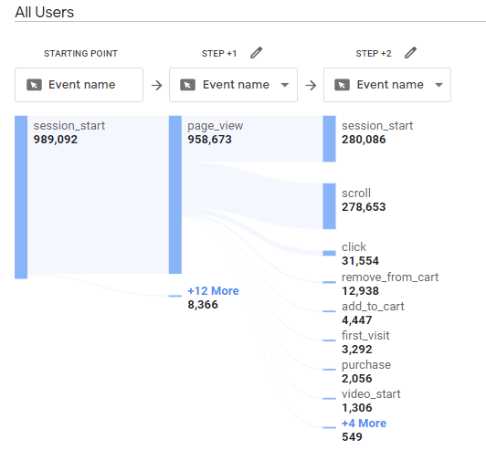
Want to unlock the full potential of your GA4 data? Exporting user data from Google Analytics 4 is easier than you might think and is essential for deep dives into user behavior and customized analysis. To export GA4 user data, you can use built-in features like BigQuery integration, which allows for comprehensive data export, or leverage GA4’s data API for more tailored insights. Setting up automatic exports ensures your data is always ready for in-depth analysis without manual effort.
In short, the best way to export GA4 user data is through linking your GA4 property to BigQuery for seamless, scalable data transfer, or using the Data API for more specific exports. These methods enable you to access detailed user information suitable for advanced analysis and reporting.
Getting raw and detailed user data from GA4 is crucial for marketers, analysts, and businesses aiming to optimize their strategies. Since GA4’s interface doesn’t provide a direct export button for complete user data, knowing how to export efficiently can significantly enhance your analytical capabilities. Whether you’re interested in exporting data for custom reports or integrating it with other tools, understanding these export options helps you harness the full power of your analytics data. This guide will walk you through simple, effective methods to export GA4 user data so you can analyze it further and turn insights into action.

How to export GA4 user data for further analysis
Understanding how to export user data from GA4 is crucial for gaining deeper insights into your audience. Exporting data allows you to analyze patterns, create custom reports, and share information with your team. This guide will walk you through each step to ensure you can access your data effectively.
Exploring the different methods to export GA4 user data
GA4 offers multiple ways to export user data, catering to various needs and technical skills. The main options include exporting via the Google Analytics interface, using Google BigQuery, and leveraging APIs for custom integrations. Each method has its advantages and setup requirements.
Exporting data directly from GA4 interface
This method is the simplest and fastest for quick data extraction. You can generate reports and export them as CSV or PDF files directly from GA4. Navigate to the reports section, customize your view, and use the export option found at the top of the report. However, this method is limited to smaller datasets and specific report views.
Using Google BigQuery for comprehensive data analysis
BigQuery allows for exporting large datasets seamlessly. First, you need to link your GA4 property to BigQuery, which enables automatic data export. Once linked, you can query your data directly in BigQuery and export results in various formats, ideal for complex analysis. This method is preferred by users handling large volumes of data or performing advanced queries.
Employing the GA4 Data API for custom data retrieval
The GA4 Data API offers programmatic access to your user data. This method is suited for developers or teams needing custom, automated data extraction routines. With the API, you can specify exact metrics and dimensions, automate data downloads, and integrate GA4 data with other tools or databases.
Step-by-step guide to export data via the GA4 interface
Follow these steps for a quick export of your report data:
- Open your GA4 property and navigate to the report you want to export.
- Customize your report with the desired metrics and dimensions.
- Click on the export icon located at the top right corner of the report.
- Select the file format, such as CSV or PDF.
- Save the exported file to your computer.
This process allows for quick manual exports but is limited for ongoing data needs. Use this for snapshots or periodic reviews.
Exporting large datasets with Google BigQuery
BigQuery setup involves linking your GA4 property and configuring data streams. Once linked, data flows automatically into BigQuery, enabling detailed analysis. You can write SQL queries to extract specific user data, such as user activity over time or demographic details.
Steps to link GA4 with BigQuery
- Sign in to Google Analytics and select your GA4 property.
- Go to Admin and find the BigQuery Linking section.
- Click on ‘Link’ and choose your BigQuery project.
- Configure your data export preferences to specify what data to export.
- Complete the setup and let data start flowing into BigQuery.
Querying and exporting data from BigQuery
Use SQL commands in BigQuery to extract raw user data. Once queries are ready, export results as CSV or JSON files. This method supports large-scale data analysis and integration with other data tools.
Accessing user data through the GA4 Data API
The API offers flexible options for fetching user data programmatically. Developers can write scripts in languages like Python or JavaScript to automate data retrieval. The API supports filtering, pagination, and batching for efficient data extraction.
Getting started with the GA4 Data API
- Enable the Google Analytics Data API in Google Cloud Console.
- Create credentials (OAuth 2.0 client ID or API key) to authorize access.
- Use client libraries or HTTP requests to query your data.
- Specify metrics, dimensions, date ranges, and filters as needed.
- Process and store the retrieved data for analysis in external tools.
Best practices for exporting GA4 user data
To ensure data quality and security, follow these guidelines:
- Regularly schedule exports for ongoing analysis and reporting.
- Maintain data privacy by anonymizing sensitive user information when necessary.
- Use automation where possible to reduce manual errors and save time.
- Document your data export processes for consistency and auditing.
- Validate exported data for accuracy before importing into external systems.
Using data analysis tools with exported GA4 data
Once data is exported, you can import it into tools like Excel, Google Sheets, or specialized data analysis platforms. These tools help visualize trends, create dashboards, and perform detailed segmentation. Connecting your data with visualization tools allows for clearer insights and better decision-making.
Creating visual dashboards
- Import your exported data into Google Data Studio or Power BI.
- Design custom dashboards displaying user engagement, demographics, and conversions.
- Schedule automatic updates to keep your dashboards current.
Performing detailed segmentation and analysis
Use filtering and pivot tables in spreadsheet tools to segment user data by age, location, device type, or other dimensions. This detailed analysis helps identify opportunities and optimize marketing strategies.
Final thoughts on exporting GA4 user data for analysis
Exporting user data from GA4 is an essential step for in-depth analysis and strategic decision-making. Whether you choose manual exports, BigQuery, or API integrations, each method offers unique benefits. Properly managing and analyzing your data helps you understand your audience better and improve your marketing efforts continuously.
How to Export Google Analytics Data for Further Analysis (with Template)
Frequently Asked Questions
What are the recommended methods to export user data from GA4 for analysis?
To export user data from GA4, you can use Google Data Studio to create reports and connect it directly to your GA4 property. You can also utilize the GA4 API to programmatically retrieve data and save it into your preferred formats like CSV or JSON. Additionally, exporting data via BigQuery integration allows for detailed analysis and custom queries. Choose the method that aligns best with your analysis needs and technical expertise.
How do I set up BigQuery export for user data in GA4?
First, link your GA4 property to a Google BigQuery project through the Admin settings. Once connected, enable BigQuery Export to automatically send user data to your BigQuery dataset. You can schedule data exports as needed. After the data appears in BigQuery, use SQL queries to extract detailed user information for further analysis or export it to other tools like spreadsheets or data visualization platforms.
Can I export only specific user segments from GA4 for detailed examination?
Yes, you can create custom segments within GA4 based on user behaviors or attributes. Once you define your segments, apply them to your reports and then export the filtered data using Data Studio or the API. This approach lets you focus on particular user groups, such as high-value customers or users from a specific region, simplifying targeted analysis.
What tools are compatible with exporting data from GA4 for custom analysis?
GA4 integrates seamlessly with tools like Google Data Studio, which allows you to generate custom reports and export data in multiple formats. The Google BigQuery connector enables complex data analysis through SQL queries and export options. You can also use the GA4 API to retrieve raw data and process it within your own analysis environment or data processing tools.
Are there limitations to exporting user data from GA4, and how can I manage them?
While GA4 offers versatile data export options, there are limits on data sampling and export frequency depending on the method used. For example, data exported via the API might be subject to quota restrictions. To manage these limitations, plan your exports during off-peak hours, segment your data efficiently, and consider using BigQuery for scalable, comprehensive data storage and analysis. Always review the latest GA4 documentation for updates on export constraints.
Final Thoughts
To export GA4 user data for further analysis, start by navigating to your GA4 property and selecting the desired report. Use the export options such as CSV, Excel, or Google Sheets to download the data directly. Alternatively, connect GA4 with tools like BigQuery for automated, detailed insights. Understanding how to export GA4 user data for further analysis helps you make informed decisions and optimize your strategies efficiently.
Recommended SEO


