
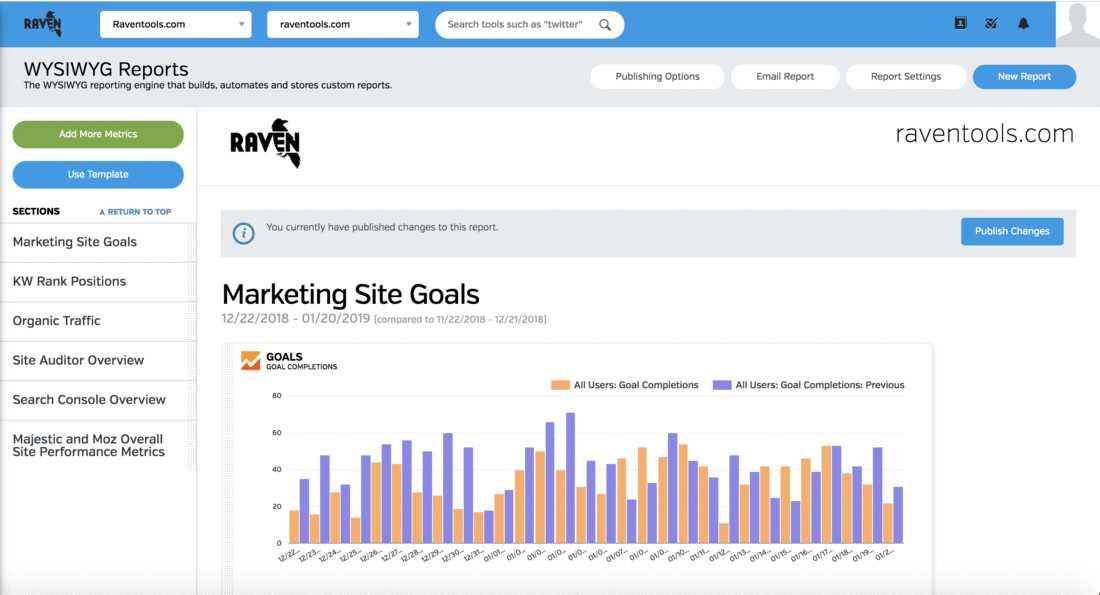
Want to get a clear picture of your website’s SEO performance using Bing? Exporting SEO reports from Bing is straightforward and provides valuable insights to boost your strategy. To do this, simply navigate to Bing Webmaster Tools, select the site you want to analyze, and access the Reports section. From there, you can customize your report, choose the data range, and export it as a CSV or Excel file for in-depth analysis. This process allows you to easily review keyword performance, crawl stats, and backlink data to refine your optimization efforts efficiently.
If you’re looking to export SEO reports from Bing for analysis, the key steps involve accessing Bing Webmaster Tools, selecting your site, generating the desired report, and downloading it in your preferred format. This enables quick data review and strategic planning without hassle.
Getting your SEO data out of Bing is a vital step to understand how your website performs on search engines. With a few simple clicks, you can generate detailed reports that reveal keyword rankings, site health, and backlinks, helping you make informed decisions. Whether you’re regularly monitoring progress or preparing for a client update, knowing how to export these reports ensures you have all the data you need at your fingertips.

How to export SEO reports from Bing for analysis
Understanding why exporting SEO reports from Bing is important
Exporting SEO reports from Bing helps you see how your website is performing in Bing search results. These reports show important data like keyword rankings, click-through rates, and impressions. Analyzing this information helps you improve your website’s SEO strategies effectively.
Types of SEO reports available from Bing
Bing provides several types of SEO reports to help website owners understand their performance. These include keyword performance reports, site traffic reports, and backlink analysis reports. Each report offers different insights to guide your SEO efforts.
Accessing Bing Webmaster Tools for SEO reports
To start exporting reports, you first need access to Bing Webmaster Tools. Visit the Bing Webmaster Tools website and sign in with your Microsoft account. If you haven’t registered your website yet, you will need to add and verify it.
Adding and verifying your website
Add your website URL in Bing Webmaster Tools. Choose a verification method, such as uploading an HTML file, adding a meta tag, or using DNS record verification. Verification confirms your ownership and grants access to detailed reports.
Locating the reporting features within Bing Webmaster Tools
Once verified, navigate to the dashboard where you can find various reporting options. These include insights on your site’s performance, search keywords, and crawl information. Locate the specific report you want to export.
Understanding report sections
Reports are divided into sections like search keywords, clicks, impressions, and site diagnostics. Each section provides data over a specific period, which you can customize for better analysis.
Steps to export SEO reports from Bing Webmaster Tools
Exporting reports from Bing involves a few simple steps. First, select the report you wish to export. Then, look for the export button, usually labeled as “Download” or “Export.”
Choosing the report format
Bing allows you to export reports in formats such as CSV or Excel. Select your preferred format based on how you plan to analyze the data later. CSV files are compatible with many data analysis tools.
Configuring export settings
Before downloading, you may need to specify date ranges and filter criteria. Customizing these settings ensures you get relevant data for your specific analysis goals.
Additional tips for effective report exporting
To maximize the usefulness of your exported reports, regularly update your data. Save multiple versions to track performance over time. Additionally, consider integrating Bing data with other SEO tools for a comprehensive view.
Automating report exports
Some tools or scripts can automate the export process, saving time and effort. Use scheduled tasks or third-party integrations to keep your reports up to date without manual intervention.
Using exported data for SEO analysis
Once you have your reports, analyze key metrics such as keyword rankings and click-through rates. Compare data over different periods to identify trends and areas needing improvement.
Creating visualizations for better understanding
Transform raw data into charts or graphs to see patterns easily. Visual representations can make it simpler to communicate findings with your team or clients.
Integrating Bing SEO reports with other tools
Combine Bing data with insights from Google Analytics, SEMrush, or Ahrefs. This integration provides a more complete picture of your website’s performance and SEO health.
Using spreadsheets for detailed analysis
Import exported reports into spreadsheet software like Excel or Google Sheets. Use functions and filters to analyze specific data points more thoroughly.
Best practices for exporting and analyzing SEO reports from Bing
Regularly review your reports to stay updated on performance changes. Maintain organized records by saving reports in structured folders. Use the insights gained to fine-tune your SEO strategies.
Scheduling periodic exports
Set a routine to export reports at regular intervals, such as weekly or monthly. Consistent data collection helps you spot long-term trends and adjust your tactics accordingly.
Sharing reports with stakeholders
Prepare summarized versions of your reports for sharing with clients or team members. Highlight actionable insights and key performance indicators to support decision-making.
Common challenges when exporting Bing SEO reports and how to overcome them
Some users face issues like incomplete data or difficulty locating export options. Ensure your account access is proper and your reports are configured correctly. Regular updates of your browser and tools can also prevent technical problems.
Dealing with data discrepancies
Differences in data between Bing and other tools can occur. Cross-reference information to confirm accuracy and consider multiple sources for comprehensive analysis.
Addressing export errors or failures
If exports fail, check your internet connection and permissions. Re-login or clear cache if necessary. Contact Bing support for persistent issues.
Consider exploring related areas such as **SEO audit tools**, **keyword research strategies**, and **competitive analysis methods**. These complement your use of Bing SEO reports and enhance overall digital marketing efforts.
Using Bing Webmaster Tools for site health checks
Beyond exporting reports, utilize Bing’s site diagnostics features to identify crawl issues, indexing problems, or security concerns. Fixing these issues can improve your site’s visibility.
Exploring Bing’s performance insights for mobile SEO
With mobile search becoming dominant, analyze how your website performs on mobile devices. Use insights from Bing Webmaster Tools to optimize user experience.
By following these steps and tips, you can efficiently export and analyze SEO reports from Bing. This process allows you to gain valuable insights into your website’s search performance and refine your SEO strategies accordingly, ultimately helping your site rank higher and attract more visitors.
How to Export Cost Data from Bing Ads (adCenter)
Frequently Asked Questions
What steps should I follow to export SEO data from Bing Webmaster Tools?
To export SEO data from Bing Webmaster Tools, log into your account and navigate to the specific report or data section you need. Click on the export button usually located at the top right corner of the report. Choose your preferred file format, such as CSV or Excel, and then save the file to your computer. This allows you to analyze the data offline and integrate it into your existing SEO workflows.
Can I customize the data range before exporting SEO reports on Bing?
Yes, Bing Webmaster Tools lets you set a custom date range before exporting reports. Locate the date filter options within the report section, select the start and end dates that suit your analysis period, and then proceed with the export process. Customizing the date range ensures you analyze specific timeframes relevant to your SEO campaigns.
Are there options to automate the process of exporting SEO reports from Bing?
While Bing Webmaster Tools does not offer built-in automated export features, you can use third-party tools or scripts to schedule downloads. For example, some APIs and automation software allow you to fetch reports regularly, saving time and reducing manual effort. Implementing such solutions depends on your technical comfort and the available API integrations.
What file formats does Bing support for exporting SEO data?
Bing Webmaster Tools generally supports exporting SEO reports in formats such as CSV and Excel. These formats are compatible with most data analysis tools and spreadsheet applications, making it easier to review and interpret your SEO metrics effectively.
Is it possible to export multiple types of SEO reports at once from Bing?
Currently, you need to export each report type separately within Bing Webmaster Tools. Navigate to different sections, such as search traffic or backlinks, and export the data individually. Automating or combining these exports may require third-party software or custom scripting to gather all relevant information in one process.
Final Thoughts
To export SEO reports from Bing for analysis, navigate to your Bing Webmaster Tools account. Select the site you want to analyze and click on the “Reports & Data” section. Choose the desired report type and set your preferred date range. Click the export button to download the report in your preferred format.
By following these steps, you can efficiently obtain SEO data for review. How to export SEO reports from Bing for analysis becomes simple with these clear instructions, helping you stay informed and make data-driven decisions easily.