
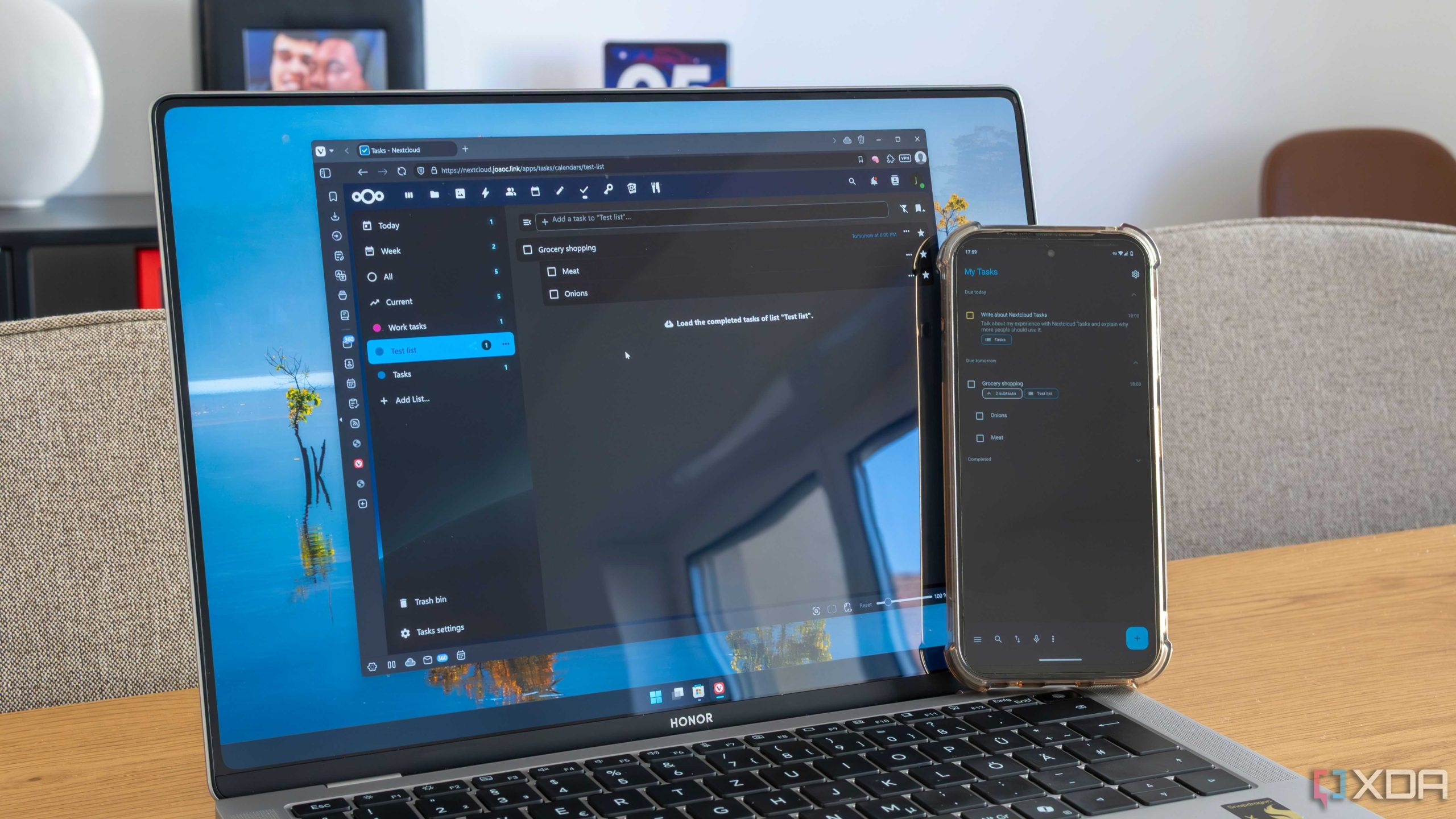
To seamlessly keep your tasks updated across all your devices, cloud-based apps are your best bet. They let you access, update, and manage your to-do lists from anywhere, anytime, without missing a beat. Simply put, syncing tasks across devices is straightforward—use reliable cloud task managers, ensure they’re connected to the internet, and enable auto-sync features to keep everything up-to-date. With just a few taps, your task list stays consistent, no matter if you’re on your phone, tablet, or computer.
The key is choosing the right app and enabling automatic synchronization, so your tasks are instantly reflected across all devices. This way, you never lose track of what you need to do, whether you’re at work, home, or on the go. Let’s explore how to set this up for smooth, effortless task management.
Keeping your tasks synchronized across multiple devices might seem tricky, but with cloud-based apps, it’s easier than ever. These apps use internet connectivity to automatically update your task lists in real-time, ensuring consistency no matter where you are. Whether you’re using apps like Todoist, Microsoft To Do, or Google Tasks, setting up sync features is simple. Just download your preferred app, log in with your account, and turn on sync options. This guarantees that any change made on one device instantly appears on all others, offering you a seamless productivity experience. So, get your favorite app, enable sync, and enjoy the freedom of synchronized tasks everywhere you go!

How to sync tasks across devices with cloud based apps
Understanding the importance of task synchronization
Syncing tasks across devices helps you stay organized and ensures you never miss an important deadline. It allows you to access your task list from your computer, tablet, or smartphone. This seamless access saves time and keeps your productivity high regardless of where you are. When tasks are synchronized, updates made on one device automatically appear on others, avoiding confusion and duplication.
Choosing the right cloud-based apps for task management
Not all apps are equal when it comes to syncing tasks across devices. Popular options include Todoist, Microsoft To Do, Asana, Trello, and Google Tasks. Each offers unique features, but they all support cloud syncing. Consider your needs: do you want simple task lists or collaborative project management? Your choice should align with your workflow and preferred devices.
Setting up your cloud account for task synchronization
To start syncing tasks, create an account on your selected app. Many services require a free sign-up with an email address or social media login. Once registered, explore the app’s settings to enable cloud synchronization options. Make sure you verify your email if necessary and log into all your devices with the same account details for seamless syncing.
Linking your devices to the cloud app
Download the app on each device you want to sync. Most apps are available on multiple platforms, including iOS, Android, Windows, and Mac. After installation, open the app and log in using your account credentials. Confirm synchronization settings are turned on to allow real-time updates across all devices. This step ensures that your tasks are always up-to-date everywhere.
Organizing tasks for effective synchronization
Proper organization helps keep your synced tasks clear. Use labels, categories, or project folders to sort tasks logically. Consistent naming conventions make it easier to find specific tasks later. When you add new tasks or update existing ones, do it within the organized system you created for better sync accuracy and efficiency.
Best practices for syncing tasks across devices
Always save or confirm changes immediately after editing tasks. Avoid working on the same task from multiple devices simultaneously to prevent conflicts. Enable notifications to stay informed about task updates. Regularly check that synchronization is working smoothly by opening the app on different devices to verify recent changes.
Managing conflicting updates and sync errors
Sometimes, conflicts happen if you update a task on two devices at the same time. Most apps notify you of conflicts and allow you to choose which version to keep. If synchronization errors occur, restart the app or device, and ensure you have a strong internet connection. Keeping the app updated helps prevent bugs that interfere with syncing.
Ensuring data security and privacy in cloud syncing
Protect your data by choosing apps with strong encryption protocols. Use strong, unique passwords and enable two-factor authentication if available. Regularly review your privacy settings to control who can see or edit your tasks. Avoid sharing sensitive task details in public or unsecured networks.
Integrating task apps with other productivity tools
Many cloud apps support integration with calendars, email, or note-taking apps. Connecting your task manager with your calendar ensures deadlines are visible. Linking with email allows quick task creation from messages. These integrations help streamline your workflow and improve overall task management.
Using automation features to enhance task syncing
Automation tools like Zapier or IFTTT can create workflows that sync tasks between different apps or trigger reminders based on certain actions. For example, when you complete a task in one app, a reminder or note can automatically be updated elsewhere. These features save time and reduce manual updates, maintaining consistency across your devices.
Tips for maintaining synchronization over time
Regularly update the app to benefit from improvements and bug fixes. Periodically review your sync settings and ensure all devices are connected to the internet. Back up your task data if the app offers this feature to prevent data loss. Staying organized and proactive prevents unnecessary sync issues.
Exploring advanced features for better task management
Many apps offer features like recurring tasks, deadlines, priority levels, and collaboration tools. Utilizing these can help you manage complex projects and teamwork effortlessly across devices. Enable notifications for upcoming deadlines to keep tasks on track. These advanced tools enhance your overall productivity and ensure consistency.
Consider using labels and filters to quickly categorize tasks. Set reminders and deadlines to keep yourself accountable. Use collaboration features when working with others, assigning tasks and sharing progress. Periodically reviewing and reorganizing your task list can lead to more efficient work habits.
Summary of essential steps for effective task syncing
- Create an account on your chosen cloud-based app
- Download and install on all devices
- Log in with the same credentials everywhere
- Organize tasks clearly and consistently
- Enable automatic sync and notifications
- Regularly verify synchronization success
- Address conflicts or errors promptly
- Protect your data with security measures
- Leverage integrations and automation
- Maintain and review your system periodically
Syncing tasks across devices with cloud-based apps offers a simple way to stay organized, productive, and connected. By choosing the right app, setting it up correctly, and following best practices, you can ensure your task list is always up-to-date no matter where you access it. This approach minimizes stress, saves time, and helps you focus on what matters most every day.
How to Sync Structured Across Your Devices – Structured App
Frequently Asked Questions
What steps should I follow to ensure my task list stays current across all my devices?
To keep your task list synchronized, start by choosing a cloud-based app that offers automatic updates. Log into your account on each device and enable sync permissions. Make sure to regularly refresh the app or check for updates to ensure all devices display the latest information. Additionally, avoid offline edits that may not sync until you reconnect to the internet.
How can I troubleshoot syncing issues between my devices?
If your tasks are not updating across devices, first verify your internet connection is stable. Check that you’re logged into the same account on all devices. Review the app’s sync settings to confirm auto-sync is enabled. If problems persist, restart the app or device, and ensure you have the latest version of the app installed. Clearing cache or reinstalling the app can also resolve persistent issues.
Are there any best practices to prevent data conflicts during synchronization?
To avoid conflicts, make sure to save changes promptly after editing tasks. Limit simultaneous edits on different devices to reduce discrepancies. Always allow a sync to complete before making new changes. Using apps that track version history or changes can help you identify and resolve conflicts efficiently if they occur.
Is it necessary to connect all devices to the internet for synchronization?
Yes, an internet connection is essential for syncing data across devices in cloud-based apps. Syncing happens through the cloud, which requires online access to upload and download updates. Some apps may offer offline mode, but changes made offline typically sync only after reconnecting to the internet.
How can I automate task updates to save time across multiple platforms?
Most cloud-based apps automatically sync updates in real-time or at scheduled intervals, reducing manual effort. To ensure this, enable auto-sync features within the app settings. Using a consistent app version and maintaining a stable internet connection also help keep your tasks synchronized without manual intervention.
Final Thoughts
How to sync tasks across devices with cloud based apps ensures your productivity remains consistent. Use apps like Todoist or Trello, which automatically update your task list across all devices. Ensure you are logged into the same account on each device for seamless synchronization. Regularly check app settings to keep sync features enabled, so your tasks stay current everywhere you go.
Recommended Productivity


