
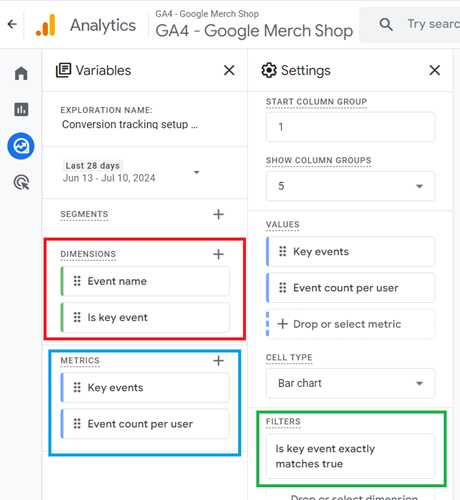
To effectively monitor your website’s performance, tracking conversion events and goals in GA4 is essential. You can do this by setting up specific events and marking them as conversions within GA4, giving you clear insights into user actions that matter most. Utilizing GA4’s flexible event tracking system, along with customizing conversion definitions, allows you to pinpoint exactly what drives success on your site.
In just a few steps, you can configure GA4 to track key conversions and goals—setting up relevant events, marking them as conversions, and analyzing the resulting data. This approach helps you understand user behavior better and optimize your marketing efforts for maximum impact.
Want to know how to implement this? Keep reading! I’ll guide you through the straightforward process of tracking conversion events and goals in GA4 so you can start making data-driven decisions today.

How to track conversion events and goals in GA4
Tracking conversion events and goals in GA4 is essential for understanding how visitors interact with your website or app. It helps you measure success and identify areas for improvement. Let’s explore how you can set up and monitor conversions effectively in GA4.
Understanding Conversion Events in GA4
Conversion events are specific actions users take on your site or app that you want to track. These actions might include making a purchase, signing up for a newsletter, or downloading a document. In GA4, these are not predefined; you set them up based on your needs.
Unlike Universal Analytics, GA4 focuses on events, making it flexible to track any user interaction. You can create custom events or use recommended ones provided by GA4. Understanding this flexibility allows you to tailor your tracking to your business goals.
How to Identify Important Conversion Actions
Start by listing actions that contribute directly to your business outcomes. For example, if you run an online store, key conversions could be completed sales and added items to cart. For a blog, they might include newsletter signups or contact form submissions.
Prioritize which events matter most. Focus on actions that lead to revenue or engagement. This helps you avoid tracking too many minor interactions that don’t contribute significantly to your goals.
Setting Up Conversion Events in GA4
Step 1: Enable Google Tag Manager or GA4 Tag
First, ensure you have GA4 properly installed on your website or app. Use Google Tag Manager for easier setup and management of your tags. Confirm the GA4 tag is active and firing correctly before proceeding.
Step 2: Create Custom Events
To track specific conversions, you might need to create custom events. This can be done in Google Tag Manager by defining triggers and tags. For example, set a trigger for when a user completes a purchase, then send that data as an event to GA4.
Step 3: Mark Events as Conversions in GA4
Once events are firing correctly, go to your GA4 dashboard. Navigate to the “Events” section, select the event you want to mark as a conversion, and toggle the switch to mark it as a conversion. This tells GA4 to count these actions as key goals.
Using Recommended Events in GA4
GA4 offers a set of recommended events tailored for different industries like ecommerce, travel, or education. These are preconfigured to track common actions like purchases or sign-ups.
- Benefit: They come with predefined parameters, making setup easier.
- Example: Use ‘purchase’ for completed transactions or ‘sign_up’ for registration forms.
Using these recommended events can save time and ensure consistency across similar platforms or websites.
Tracking Goals with Conversions in GA4
Difference Between Goals and Conversions
In GA4, goals are now called conversions. They are specific events you designate as important for your business. Unlike Universal Analytics, GA4 uses events as the foundation for goal tracking.
Setting Up Conversion Goals
- Identify which events you want to count as conversions.
- Ensure these events are firing correctly on your website or app.
- Mark these events as conversions in GA4 dashboard.
Analyzing Conversion Data in GA4
After setting up conversions, you’ll want to analyze their performance. GA4 provides a dedicated conversions report showing how many users complete each goal.
Look for patterns such as time to convert, device types, or traffic sources. Use these insights to optimize your website or marketing campaigns for higher conversion rates.
Creating Custom Reports and Audiences for Conversion Tracking
Building Custom Reports
Use GA4’s Explore section to build custom reports around conversion data. Drag and drop different metrics and dimensions for a detailed view of user behavior.
Creating Audiences Based on Conversions
Create segments of users who completed certain conversions. This allows you to retarget or personalize marketing efforts based on user actions.
Best Practices for Effective Conversion Tracking
- Regularly Review Your Events: Keep an eye on which events are firing correctly and adjust as needed.
- Limit Unnecessary Tracking: Focus on key actions to avoid data overload.
- Test Your Tracking: Always test events and conversions before relying on data.
- Utilize UTM Parameters: Use UTM tags to identify traffic sources associated with conversions.
Common Challenges and Solutions in Tracking Conversions in GA4
Issue 1: Events Not Firing Correctly
This often happens due to misconfigured tags or triggers. Use the GA4 DebugView to troubleshoot and confirm events are working properly.
Issue 2: Conversions Not Being Recorded
Ensure events are marked as conversions in GA4 and that they fire on the intended pages. Double-check your setup in Google Tag Manager or the website code.
Issue 3: Data Discrepancies
Variations between GA4 and other analytics may occur due to differences in attribution windows or data processing. Always compare data over several periods and maintain consistent tracking methods.
Advanced Tips for Tracking and Optimizing Conversion Events
Implementing Enhanced Ecommerce Tracking
For online stores, enable enhanced ecommerce in GA4 to get detailed insights into product views, add-to-carts, and checkout behavior. This helps identify bottlenecks in the sales funnel.
Using Custom Parameters for Deeper Insights
Add custom parameters to your events to capture specific data, such as product categories or campaign IDs. These details provide more context for analyzing conversions.
Integrating GA4 Data with Other Tools
Combine GA4 with platforms like Google Data Studio for visual reports or CRM systems for better customer insights. Integration helps streamline your marketing and sales workflows.
Automating Conversion Reports and Alerts
Set up automated alerts for significant changes in conversion rates. This way, you can respond quickly to trends or issues without manual monitoring.
Tracking conversion events and goals in GA4 is a crucial step in understanding and improving your online performance. By properly setting up custom and recommended events, marking them as conversions, and analyzing the data, you gain valuable insights into user behavior. Regular review and optimization ensure your website drives the desired outcomes effectively, making your data-driven decisions more accurate and impactful.
How to Create Conversion Events in GA4 – Elevate Your Tracking With This Easy To Follow Guide
Frequently Asked Questions
How can I verify if my conversion events are tracking correctly in GA4?
To verify your conversion events, navigate to the GA4 dashboard and go to the “Events” section. Check if your specific conversion events appear there after performing the actions on your website or app. You can also use the DebugView feature to monitor events in real-time, ensuring that the tracking setup functions as intended. Performing test conversions helps confirm that data flows accurately into GA4.
What steps should I follow to attribute conversions to specific marketing campaigns in GA4?
First, ensure that your campaign parameters such as UTM tags are properly added to your marketing links. Next, review the “Acquisition” reports in GA4 where traffic sources are detailed. From there, you can see which campaigns, sources, or mediums led to conversions. Using custom reports or segments allows for deeper analysis, helping you understand the effectiveness of each campaign in driving goal completions.
Can I set up automatic tracking for common conversions in GA4?
Yes, GA4 automatically tracks some basic interactions like page views, scrolls, outbound clicks, site search, video engagement, and file downloads. For more specific conversions, you need to configure custom events or mark existing events as conversions. Setting up these custom triggers involves defining event parameters that match your conversion criteria and activating them within GA4’s conversion settings.
How do I create custom goals or conversions based on user behavior in GA4?
In GA4, you create custom conversions by first defining an event that captures the user behavior you want to track. Then, go to the “Conversions” section and mark this event as a conversion. You can modify existing events or set up new ones using the GA4 interface or Google Tag Manager. Once marked, GA4 begins recording these user actions as conversion data, which you can analyze in reports.
What tools or features in GA4 assist in troubleshooting tracking issues?
GA4 provides tools like DebugView, which displays real-time data of events sent from your website or app. Use DebugView during testing to ensure events fire correctly and parameters pass as expected. Additionally, the “Realtime” report offers immediate insights into user activity, helping identify any discrepancies or missing events. Regularly reviewing these tools helps maintain accurate conversion tracking.
Final Thoughts
How to track conversion events and goals in GA4 is essential for understanding your website’s performance. Start by setting up conversions directly in GA4’s interface, marking key actions like form submissions or product purchases. Use the Events report to analyze how users interact with your site. Regularly review your goals and adjust tracking as needed to ensure accurate data collection. With these steps, you can effectively monitor and optimize your marketing strategies.
Recommended SEO


