
To efficiently track milestones and deliverables in Smartsheet, set up a dedicated project sheet with clear goal markers, assign deadlines, and use visual tools like Gantt charts and Conditional Formatting to monitor progress at a glance. Automate reminders and update statuses regularly to keep everyone aligned. With these steps, you’ll stay on top of your project’s key dates and deliverables.
Managing project milestones and deliverables can feel overwhelming, but Smartsheet makes it straightforward with its versatile features. This powerful platform allows you to visualize your timeline, track task completion, and communicate seamlessly with your team—all in one place. By setting up your sheet properly, leveraging automation, and maintaining consistent updates, you can keep your project on track and ensure nothing slips through the cracks. Whether you’re a seasoned project manager or just starting out, mastering these techniques will help you deliver on time, every time.

How to track milestones and deliverables using Smartsheet
Understanding the importance of tracking milestones and deliverables
Tracking milestones and deliverables helps teams stay organized and on schedule. It provides clear visibility into project progress, making it easier to meet deadlines. Proper tracking also improves communication among team members and stakeholders.
Getting started with Smartsheet for project tracking
Smartsheet is a flexible platform perfect for managing project milestones and deliverables. To begin, create a new sheet and set up columns for task details, due dates, responsible persons, and status. These columns are essential to monitor progress accurately.
Creating a project plan with milestones and deliverables
Start by listing all key tasks in your project. Mark major milestones as specific tasks with target completion dates. Break down complex deliverables into smaller, manageable activities. This breakdown helps in tracking progress more effectively.
Designating responsible parties and deadlines
Assign each task and milestone to team members with clear deadlines. This assignment ensures accountability and keeps everyone aware of their responsibilities. Use the “Owner” column for assignments and “Due Date” for deadlines.
Using Smartsheet features to track progress
Smartsheet offers various tools to keep your project on track. These include Gantt charts, automated alerts, and status columns. Leveraging these features improves visibility and responsiveness.
Implementing Gantt charts for visual tracking
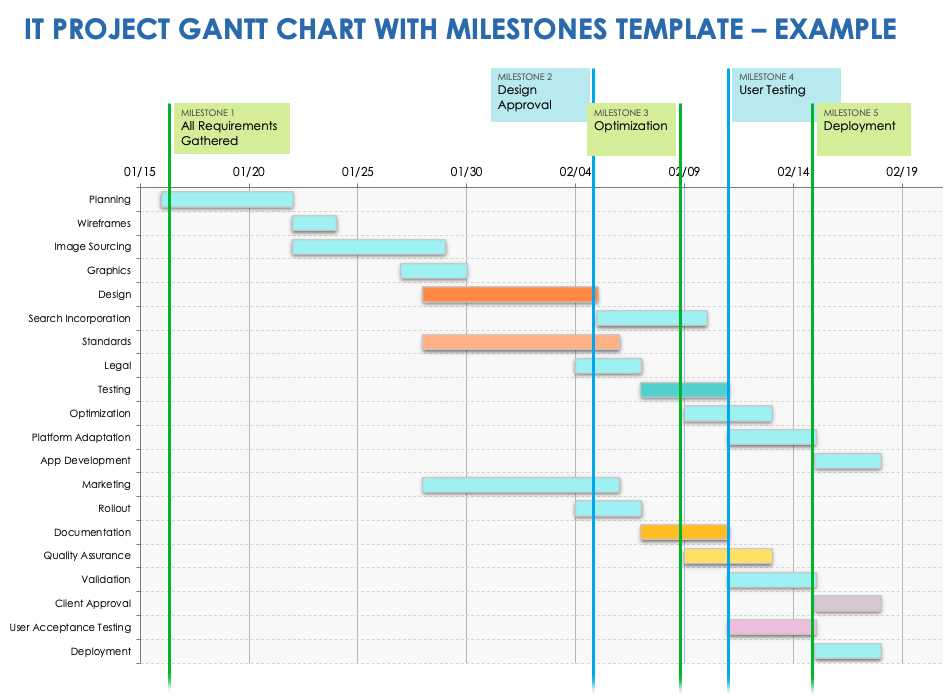
Gantt charts provide a visual timeline of your project. They display tasks, durations, dependencies, and milestones graphically. This visualization makes it simple to see any timeline delays or overlaps.
Setting up automated alerts and notifications
Automate reminders for upcoming deadlines or overdue tasks. Smartsheet allows you to configure alerts that notify relevant team members when a task is approaching or delayed. This keeps everyone proactive.
Monitoring and updating progress regularly
Regular updates keep your project current. Schedule weekly reviews to update task statuses, complete checkboxes, and revise timelines if needed. Consistent tracking prevents surprises and keeps the project on course.
Using status columns for real-time updates
Include a dedicated status column with options like “Not Started,” “In Progress,” “Completed,” or “Blocked.” Team members can update this column as they work, providing instant project health insights.
Utilizing color coding and conditional formatting
Apply color codes to different statuses or priority levels. For example, red for overdue tasks, yellow for in progress, and green for completed. This visual cue quickly highlights areas needing attention.
Tracking milestones with Smartsheet dashboards
Dashboards offer a centralized view of your project’s key metrics. Create a dashboard that includes milestone progress, upcoming deadlines, and overdue tasks. Use charts and widgets to make information accessible at a glance.
Designing a milestone tracking dashboard
Select the most relevant data points such as completed milestones, pending tasks, and upcoming deadlines. Incorporate charts, progress bars, and summary widgets to enhance clarity. Regularly updating the dashboard keeps stakeholders informed.
Integrating charts and reports for detailed analysis
Generate reports to analyze project data over time. Use charts to visualize progress, task completion rates, and delay patterns. These insights help in making informed decisions and adjusting plans proactively.
Best practices for effective milestone and deliverable tracking
Consistency and clarity are key. Make sure all team members understand how to update their tasks and statuses. Regular communication fosters accountability and keeps the project moving forward.
Establishing clear milestones and deliverable definitions
Define what constitutes completion for each milestone and deliverable. Clear criteria prevent confusion and ensure everyone is aligned on expectations.
Using templates for repeatable projects
Leverage Smartsheet templates for projects with similar structures. Templates save time and maintain consistency across multiple projects.
Auditing progress and adjusting plans
Periodically review your tracking data. If delays or issues arise, modify your plans or reassign tasks as needed. Flexibility keeps the project aligned with its goals.
Integrating Smartsheet with other tools
Enhance your tracking by connecting Smartsheet with other applications like Slack, Microsoft Teams, or Google Calendar. Integration facilitates real-time updates and seamless communication.
Using automation to connect workflows
Set up automation rules for task assignments, reminders, and status updates. These workflows reduce manual work and improve consistency.
Exporting data for reporting and sharing
Export project data to Excel, PDF, or Google Sheets for presentations or stakeholder reports. Well-prepared reports enhance transparency and support decision-making.
Case studies: Successful milestone tracking in Smartsheet
Several organizations use Smartsheet to track complex projects efficiently. For example, a marketing team managed campaign launches by monitoring deliverables and deadlines through custom dashboards. These real examples demonstrate the platform’s effectiveness.
Keeping track of milestones and deliverables with Smartsheet involves setting clear goals, utilizing visual tools, automating alerts, and regularly assessing progress. Implementing these practices ensures your project stays on schedule, within scope, and aligned with your objectives. By using Smartsheet’s features strategically, you create a transparent, organized environment that simplifies managing even complex projects.
How Do I Create A Gantt Chart In Smartsheet? – The Time Management Pro
Frequently Asked Questions
How can I set up automated alerts for upcoming project deadlines in Smartsheet?
To set up automated alerts for upcoming deadlines, first mark your key milestones and deliverables with appropriate date columns. Then, navigate to the ‘Automation’ menu and select ‘Create a Workflow.’ Choose trigger conditions based on date changes or approaching deadlines, and specify actions such as sending email notifications. This process ensures all team members receive timely reminders without manual follow-ups, helping keep your project on track.
What is the best way to visualize progress on multiple milestones within Smartsheet?
You can visualize progress by creating Gantt charts or using the Card View feature. Set up your milestones and deliverables in a sheet with start and end dates, then generate a Gantt chart to see timelines and overlaps visually. Alternatively, switch to Card View to track individual tasks’ status with color-coded cards. Both options provide clear visual cues on progress, making it easier to identify delays or bottlenecks.
Encourage team members to update their task statuses directly within the sheet using predefined status columns such as ‘In Progress,’ ‘Completed,’ or custom labels. Use cell comments or attachment features to add relevant notes. To keep everyone informed, set up automated update requests or notifications that prompt team members to provide status updates regularly. Sharing access permissions ensures everyone views the latest information in real-time.
Can I track dependencies between different milestones and deliverables in Smartsheet?
Yes, you can track dependencies by establishing links between related tasks or milestones. Use the predecessor and successor columns to specify task relationships. When you update one task, Smartsheet automatically adjusts the timeline of dependent tasks, alerting you to potential delays. This setup helps maintain a clear view of task sequences and ensures that delays in one area don’t cascade unnoticed.
What features in Smartsheet help me compare planned versus actual progress on milestones?
Use the baseline feature to set planned start and end dates for milestones. Regularly update actual completion dates and progress percentages in your sheet. Smartsheet’s report and dashboard tools enable you to compare planned versus actual timelines visually. This comparison helps identify deviations early, so you can take corrective actions promptly and keep your project aligned with its goals.
Final Thoughts
How to track milestones and deliverables using Smartsheet ensures your project stays on schedule. Set clear milestones with deadlines and assign specific tasks to team members for accountability. Use visual tools like Gantt charts and dashboards to monitor progress at a glance. Regular updates and status reports help maintain transparency and address issues promptly. Staying organized with Smartsheet simplifies project management and keeps everyone aligned toward common goals.