
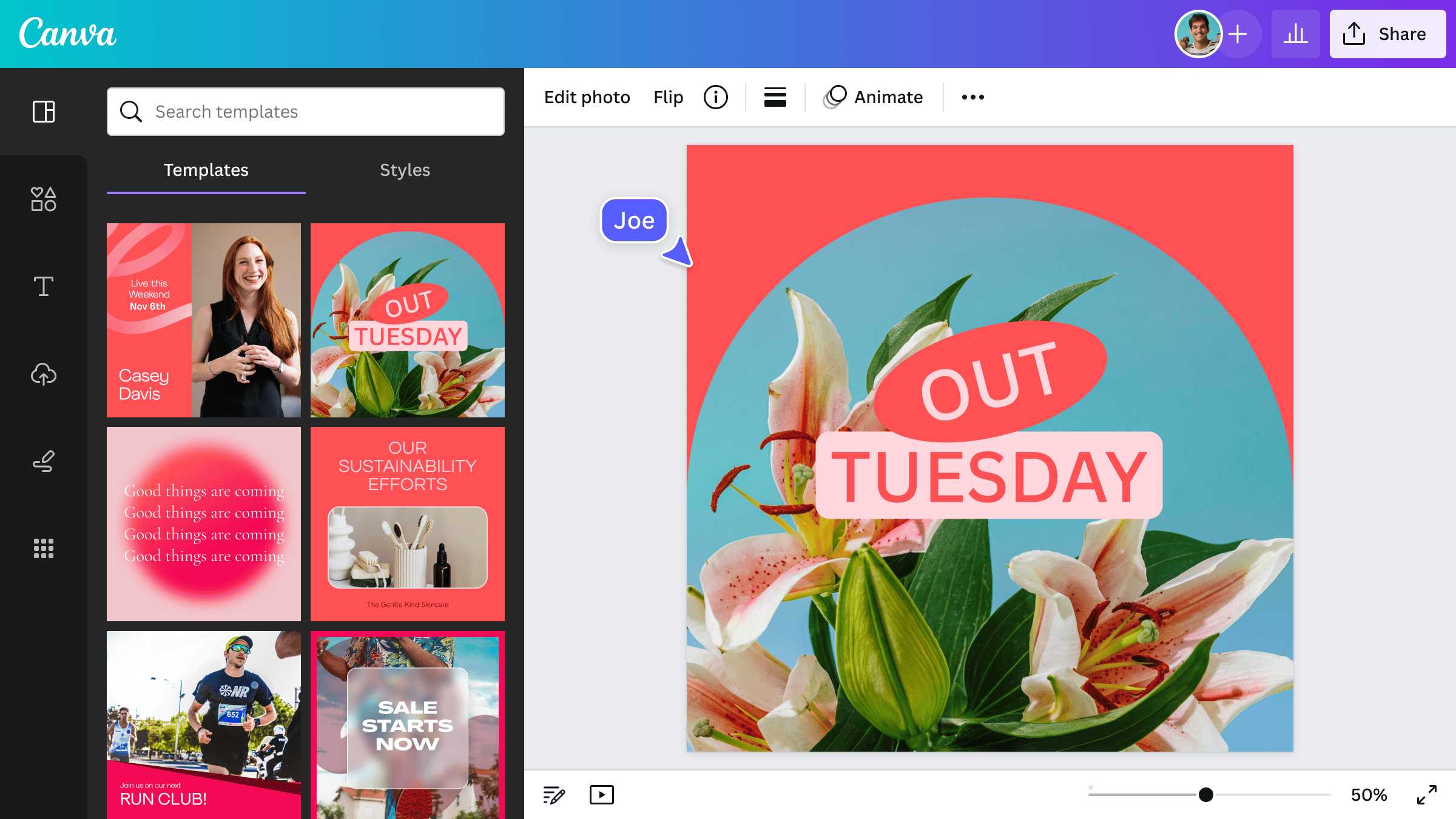
Looking to create eye-catching social media graphics effortlessly? Canva is your go-to tool for designing stunning visuals that grab attention and boost engagement. With its user-friendly interface and vast library of templates, customizing your graphics has never been easier. To use Canva effectively, simply choose a template that fits your content, personalize it by adding your images, text, and colors, then download and share your creation. Whether you’re a beginner or a seasoned designer, Canva makes the process quick and enjoyable.
Canva allows you to design social media graphics quickly by providing intuitive tools and pre-made templates. You start by selecting the right template, customizing it with your content, and then exporting your finished design. This platform is perfect for creating professional-quality visuals without needing advanced design skills.
If you want to craft captivating social media posts, Canva is the ideal solution. It streamlines the design process, offering easy-to-use features that help you produce visually appealing graphics in minutes. No matter your skill level, Canva’s tools and templates enable you to bring your creative ideas to life effortlessly.

Canva is a powerful tool that helps you create eye-catching social media graphics with ease. Whether you’re a beginner or have some design experience, Canva makes the process simple and fun. In this section, we will explore all the steps and tips needed to design stunning social media images using Canva.
Getting started with Canva
First, sign up for a free Canva account or log in if you already have one. Canva offers both free and premium features, so choose the option that best suits your needs. Once logged in, you can access the dashboard where all your designs and templates are stored.
On the dashboard, you will see a search bar. Use it to find templates tailored for specific social media platforms such as Instagram, Facebook, Twitter, LinkedIn, or Pinterest. Selecting the right template size ensures your graphics look professional and fit perfectly on your chosen platform.
Canva provides a vast library of pre-designed templates for various social media platforms. To select a template, simply click on the platform you’re designing for, like Instagram Post or Facebook Cover. These templates are optimized for each platform’s dimensions, saving you time and effort.
Browse through the options and pick a design that matches your message and style. You can always customize colors, fonts, and images later, but starting with a relevant template gives you a professional foundation.
Customizing your design
Once you’ve selected a template, it’s time to make it your own. Click on any element—text, images, shapes—and edit it directly on the canvas. To change text, double-click and type your message. Adjust font style, size, and color from the toolbar at the top.
Change colors to match your brand or personal style by clicking on elements and selecting new hues. Canva’s color palette makes it easy to choose and coordinate shades effectively.
Adding Text to Your Social Media Graphics
Text is crucial for conveying your message clearly. Use the “Text” tab on the sidebar to add headings, subheadings, or body text. Canva offers many font combinations, making it easy to find a style that fits your brand.
Ensure your text is easy to read by choosing suitable font sizes and contrasting colors. Keep your message straightforward and impactful, especially since social media graphics are often viewed on smaller screens.
Inserting Images and Icons
Images are the focal point of engaging social media graphics. Upload your own photos by clicking on the “Uploads” tab, or browse Canva’s library of free and premium images. Use the search bar to find relevant visuals quickly.
Icons and shapes can help illustrate your message. Search for icons within Canva and add them to your design. Customize their size, color, and position to enhance your graphic’s visual appeal.
Using Canva’s Design Tools Effectively
Canva offers a variety of tools to improve your design, such as grids, frames, and alignment options. Use grids and frames to organize your images and text neatly. This creates a balanced and professional look for your graphic.
Align elements using the position tools to center or space items evenly. Consistent spacing and alignment make your design more aesthetically pleasing and easier to read.
Applying Filters and Effects
Enhance your images by applying filters available within Canva. Select an image, then click on “Filter” or “Adjust” to modify brightness, contrast, and saturation. Use effects like shadows or transparency to add depth to your design.
Be subtle with effects to keep your graphic clean and professional. Overdoing filters can make your image look cluttered or unprofessional.
Leveraging Canva’s Branding Features
If you create social media graphics regularly, consider using Canva’s Brand Kit feature. It allows you to save your brand colors, fonts, and logos for quick access. This ensures consistency across all your social media posts.
Upload your logo and add it to your designs easily. Keep your branding elements in the Brand Kit to save time and maintain a cohesive look.
Creating Reusable Templates
Save your designs as templates for future use. This way, you can update only the text or images while maintaining a consistent style. Reusable templates make your content creation faster and more efficient.
To save a template, click on the “Share” button and select “Template,” then categorize it for easy access later.
Once your design is complete, click the “Download” button. Canva provides options for file types, including PNG, JPEG, and PDF. For most social media platforms, PNG or JPEG works best due to their high quality and small file size.
Adjust the resolution settings if you want higher quality images. For best results, download your graphics in the recommended dimensions specified for each social media platform.
Scheduling and Posting Your Graphics
After downloading your images, upload them directly to your social media accounts or use scheduling tools like Buffer or Hootsuite. This helps maintain a consistent posting schedule and ensures your graphics reach your audience at optimal times.
Remember to add relevant hashtags, captions, and tags to maximize engagement and visibility.
- Keep it simple: Focus on a clear message with minimal elements.
- Use contrasting colors: Make your text and images stand out against the background.
- Be consistent: Use your brand colors and fonts across all posts for recognition.
- Include a call to action: Encourage viewers to like, share, or comment with clear prompts.
- Test different styles: Experiment with various templates, colors, and formats to see what resonates best with your audience.
- Understanding social media platform specs: Learn the optimal sizes and formats for each platform.
- Creating animated graphics in Canva: Add motion to your posts with simple animations.
- Using Canva Pro features: Explore premium tools like background remover and magic resize for more advanced designs.
- Analyzing social media engagement: Track which graphics perform best to inform future designs.
By following these steps and utilizing Canva’s extensive features, you can confidently design professional-looking social media graphics that attract attention and grow your online presence. Practice regularly and keep exploring new tools within Canva to stay ahead in the digital content game.
Frequently Asked Questions
To select the appropriate template, start by considering the platform where you will post your graphic. Canva offers templates optimized for Instagram, Facebook, Twitter, and more. Browse through the available options, filtering by style or theme to find one that matches your brand’s personality. Once you find a suitable template, customize it to align with your message and visual identity.
Customize templates by replacing default images and graphics with your own or selecting from Canva’s extensive photo library. Alter the color scheme to match your branding, and adjust fonts for consistency. Add your logo and brand elements to personalize the design further. Use Canva’s editing tools to resize, rotate, or reposition components for a distinctive look.
Achieve visual balance by organizing elements thoughtfully. Use alignment tools to position text and images symmetrically or according to your preferred layout. Maintain consistent spacing and margins, and avoid overcrowding. Selecting a focal point for each graphic helps direct viewers’ attention naturally across the design.
Keep your message clear and concise, using minimal words. Choose fonts that are easy to read at small sizes, and vary font sizes or styles to highlight important information. Use contrasting colors between text and background to improve readability. Incorporate call-to-action phrases to encourage audience interaction.
When your design is complete, click the download button and select the appropriate file type, such as PNG or JPEG, based on your platform’s requirements. For high-resolution images, choose a larger size setting if available. Save your file with a clear name and keep a local copy for future edits or reposts.
Final Thoughts
How to use Canva to design social media graphics involves selecting a template, customizing it with your images and text, and then adjusting colors and fonts to match your brand. Canva’s user-friendly tools allow you to drag and drop elements easily, saving time and effort. Once you finish designing, download your graphics in the preferred format and share them directly on your social channels. Practicing these steps ensures you create visually appealing content quickly. In summary, mastering Canva for social media graphics simplifies your content creation process and enhances your online presence.